
MetaSlider users often want a carousel slideshow with images and captions. In a carousel, there are multiple images visible in the display at the same time.
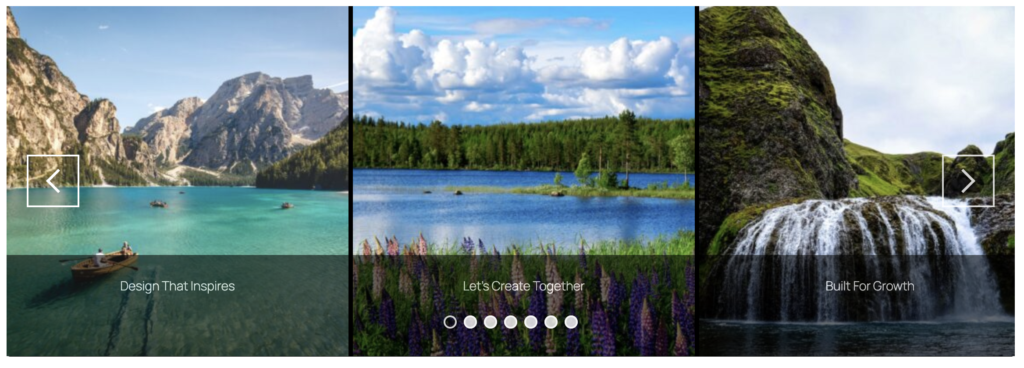
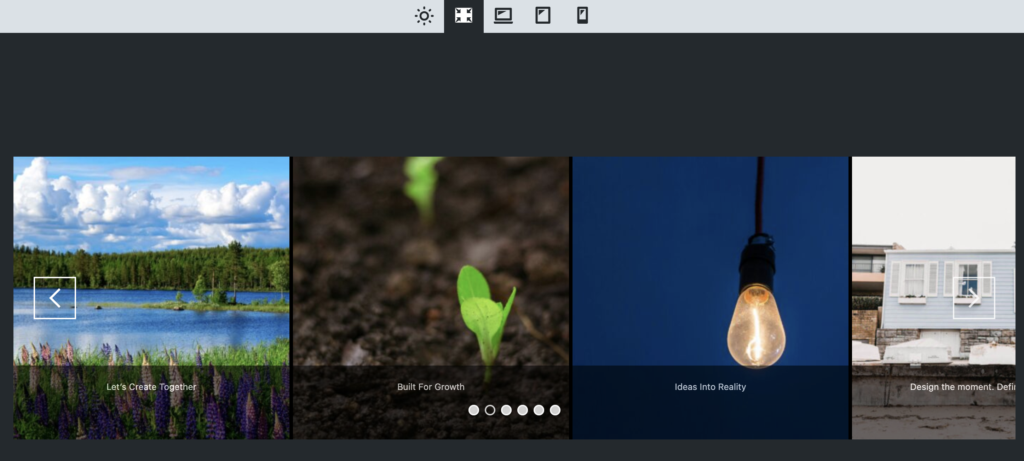
This certainly is possible with MetaSlider, and in this guide we’ll show you how it’s done. This image below gives you an idea of the end result for this guide.
To get started with this tutorial, make sure you have the MetaSlider plugin installed.
- Go to “Quick Start” in your WordPress admin area.
- Choose “Carousel” from the dropdown menu shown below.
- In this example, we’re going to choose “Image Carousel with Captions”. Click that option and then click “Yes, please”.

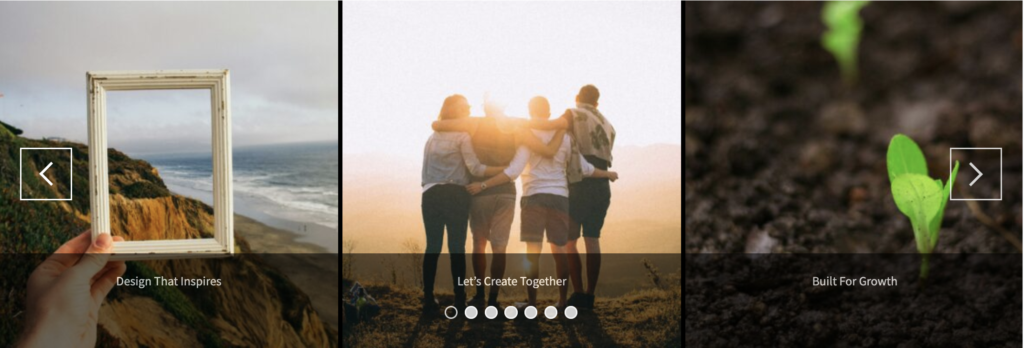
- If you publish this slideshow immediately it will look like the “Image Carousel with Captions” demo.
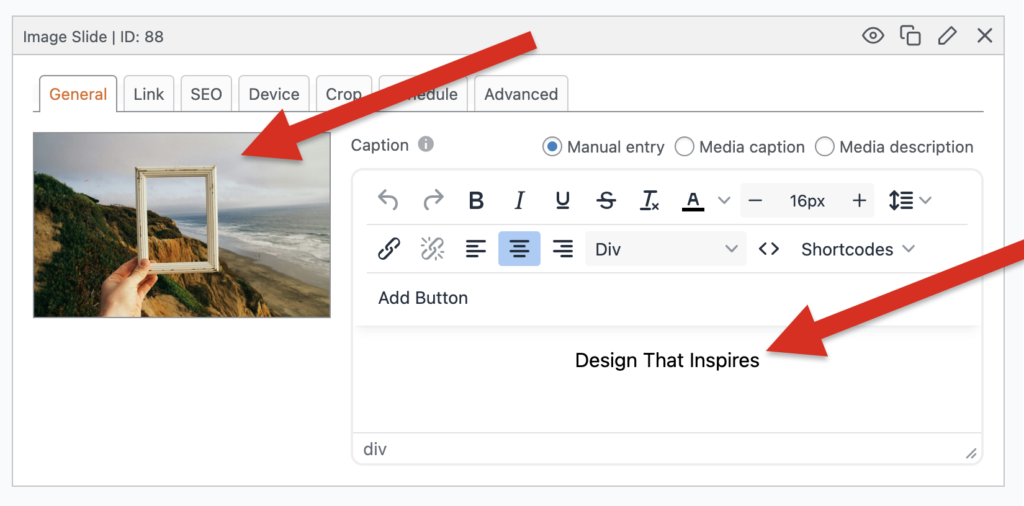
- You can use the MetaSlider interface to update both the image and the text caption.
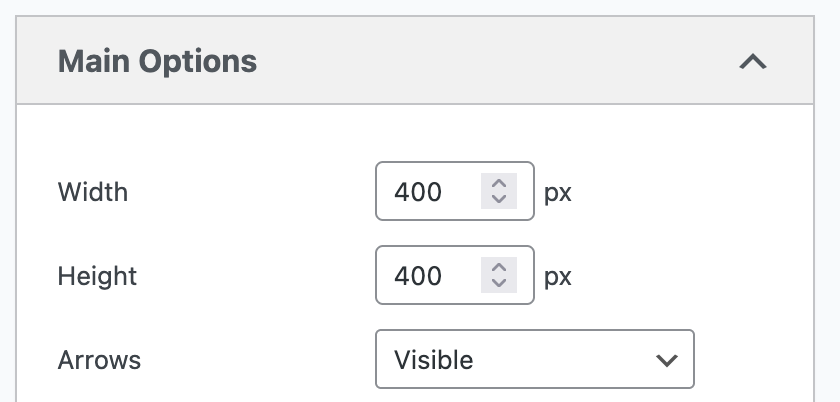
Look in the right sidebar and choose the width of your slideshow. In this example, I’ve set both the width and the height to be 400px so my image displays will be square. If you do want multiple images to show at the same time, make sure the “Width” is narrower than your container – the space on the website where you want to place this carousel.
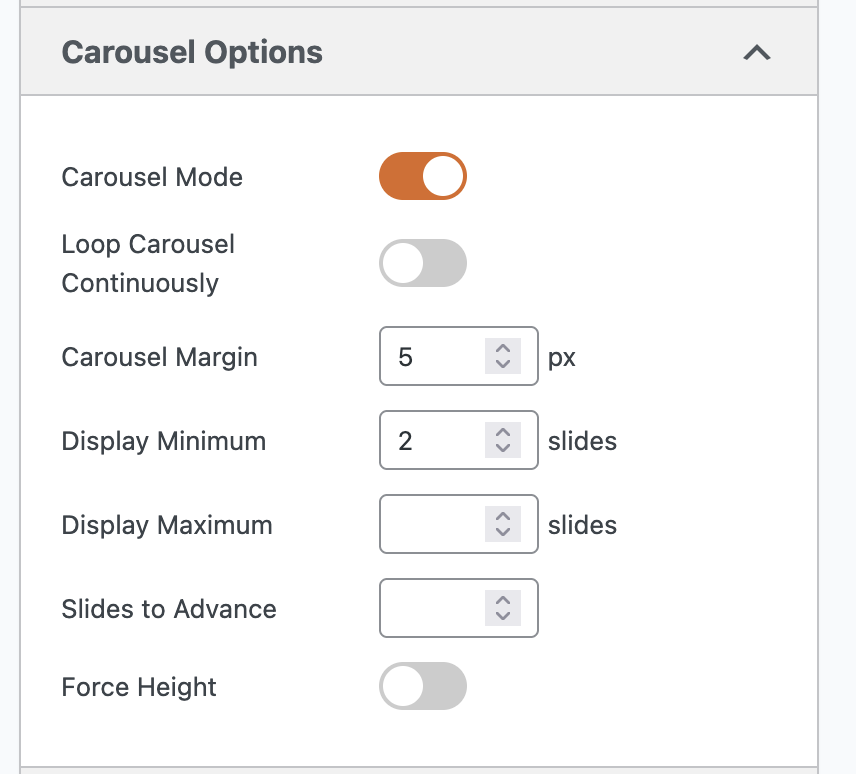
- In the “Carousel mode” area, you can enable Carousel Mode if it’s not already active. This will enable a new set of options for your carousel:
- Click the “Preview” button in the toolbar at the top of the screen.
- You will now see your carousel in action. This is the first draft of your carousel and gives you an idea of what it will look like. When you’re ready, you can click the X in the top-right corner and make some changes.
It is possible to create a carousel slideshow with any type of slides. In the image below we have created a carousel slideshow with YouTube slides. You can create carousels with Vimeo slides, Layer slides, or anything else that’s available in MetaSlider.
Here’s a sample carousel that was built with MetaSlider:









Get the best WordPress slideshow plugin
MetaSlider Slideshow is the best WordPress slider plugin.
You can create stylish sliders using images, videos and much more.