
We’re delighted to introduce our newest plugin: MetaSlider Gallery.
Our goal here at MetaSlider has always been to build the most user-friendly slideshow plugin in WordPress.
We’re now bringing that same focus on simplicity, performance, and design to a dedicated gallery plugin.
Our MetaSlider Gallery plugin allows you to create stylish image galleries in WordPress.
Let’s dive in and see what you can do with MetaSlider Gallery.
Table of Contents for this post
Live Demos of MetaSlider Gallery
MetaSlider Gallery gives you two ways to show your images: in your post, and in a full-screen window.
You can see both displays in this demo gallery with beach photos. Check out the four photos in a gallery layout. Then click on the orange icons to see the images in a larger window.




Here’s a second demo of MetaSlider Gallery. This time, we’re showing the smooth integration with our MetaSlider Slideshow plugin. This is a normal slideshow, but click on any image and you’ll see the same image in a full-screen window.




Here’s a third demo using a single image in a WordPress post. Click on the orange icon to see the full window.

And here’s a fourth demo using a regular Gutenberg gallery block. Again, use the orange icons to see the larger display.




Two Views for Your Images
There are two display options in MetaSlider Gallery. This applies whether you’re using a MetaSlider gallery, a slideshow, a single image, or a core WordPress gallery
First, you can display your images inside your post. This screenshot below shows a layout from MetaSlider Gallery. This uses the same “Grid” layout we saw above. The main difference is that this screenshot is using a three column layout instead of two columns.

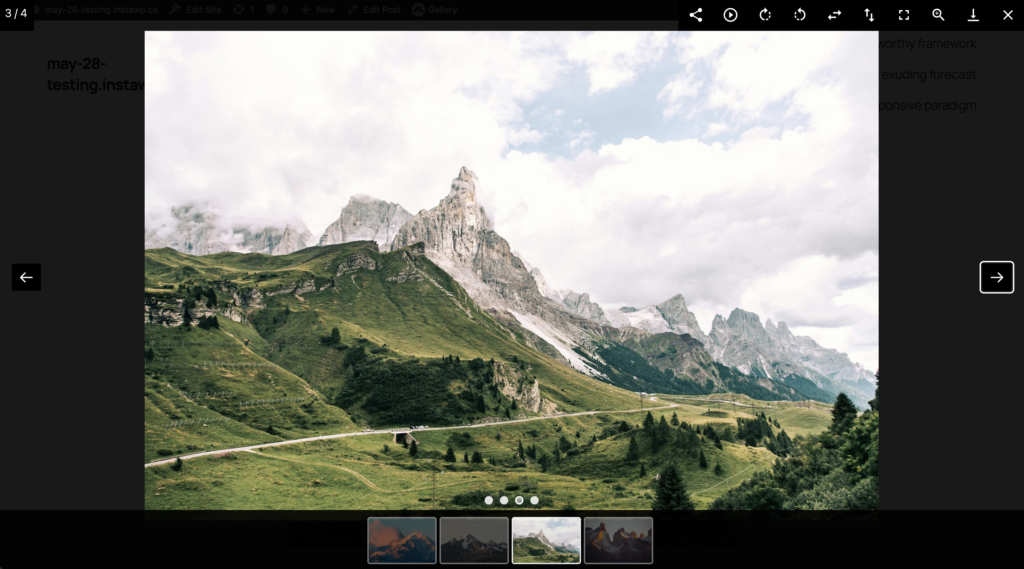
Second, you can allow users to view the images inside the larger window. The screenshot below shows the toolbar in the top-right corner that provides tools such as Social Share, Autoplay, Rotate, Flip, Fullscreen, Zoom, Download, and more. There’s also a pager to show the number of images, navigation arrows, and a thumbnail guide under the window.
How to create an image gallery
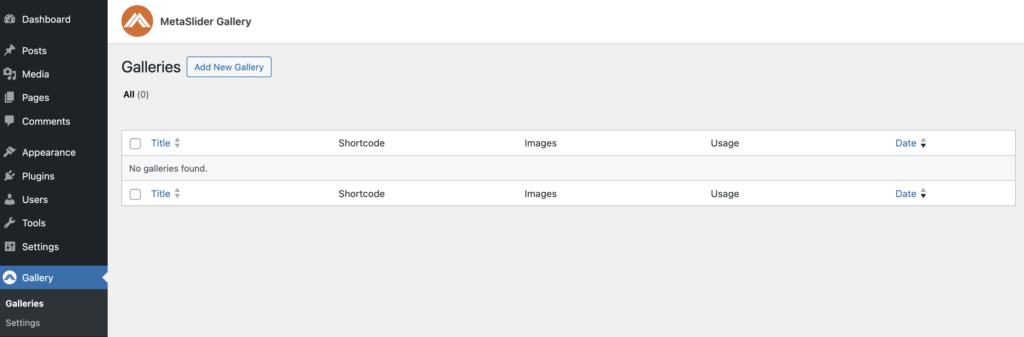
Let’s see how to get started with MetaSlider Gallery. To create your own new gallery, find the “Galleries” screen, as shown in the screenshot below:
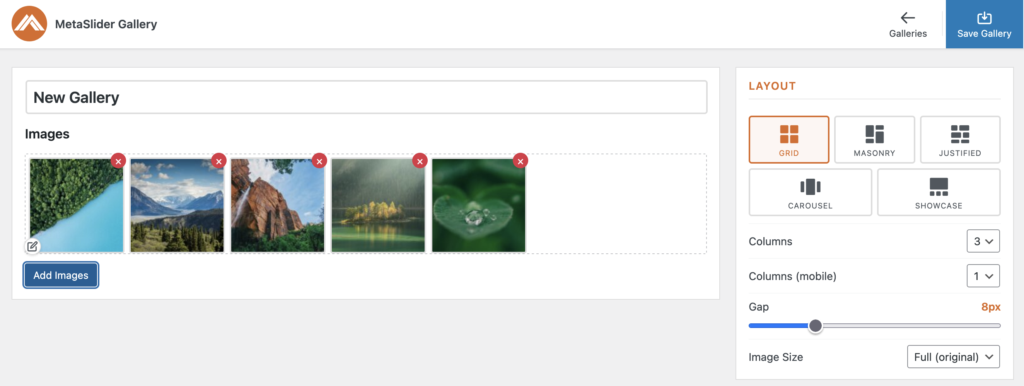
There are currently five layouts available for your image gallery: Grid, Masonry, Justified, Carousel, and Showcase. You can select a layout from the right sidebar.
We’ve already seen the “Grid” layout option. Let’s take a look at the other layout options inside MetaSlider Gallery. The “Masonry” layout option will also show the images in a grid-like layout, but this approach has a flexible placement that fills gaps left by shorter items.

The “Justified” layout option arranges images in rows. This layout allows each image to keep its original aspect ratio, so it won’t always be possible to fill each row edge-to-edge.

The “Carousel” layout shows one main image at a time. The visitor can use arrows or the thumbnail navigation to browse to the next image.
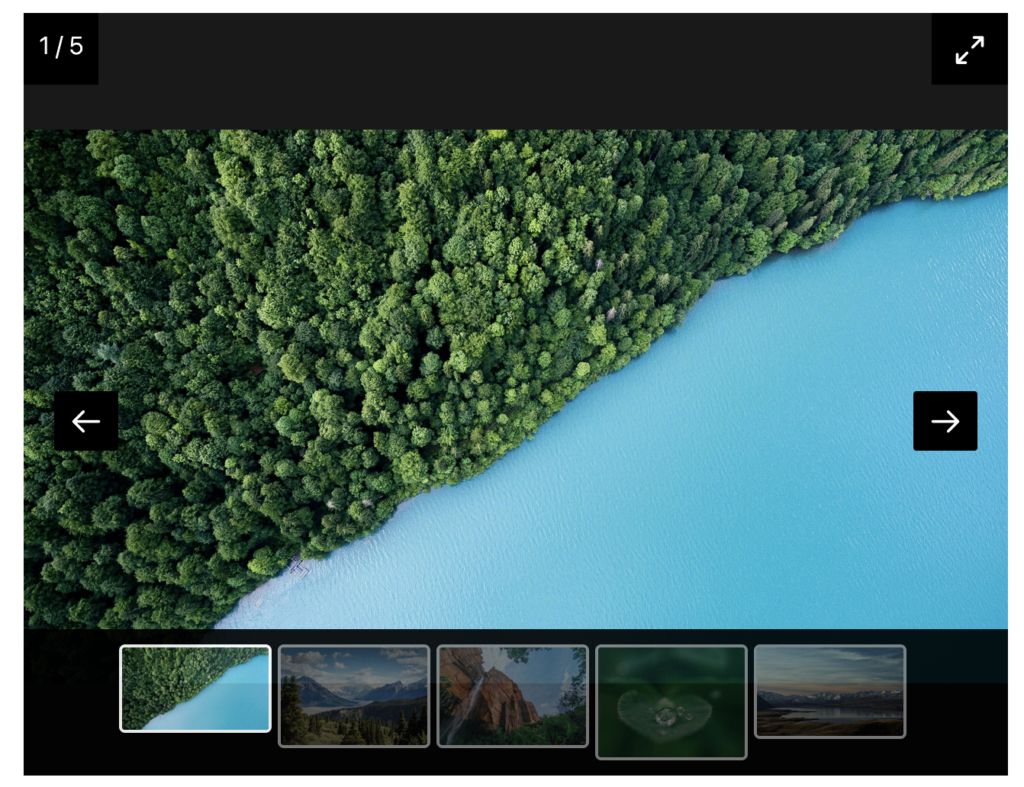
The “Showcase” layout also shows one image at a time. In this layout, the arrows and the thumbnail navigation are both underneath the image.

Why MetaSlider Gallery and not the WordPress core?
WordPress includes a basic gallery block, but MetaSlider Gallery just has a lot more features:
- Multiple gallery layouts.
- Fullscreen browsing.
- Zoom functionality.
- Social sharing tools.
- Better presentation for large image collections.
- And much more …
In an upcoming release, we’ll allow users to convert core WordPress galleries to MetaSlider Gallery in just one click.
What’s next for MetaSlider Gallery?
MetaSlider Gallery is the newest addition to the MetaSlider family, and we’ve already got a detailed roadmap for additional layouts, customization options, and integrations based on customer feedback.
We’re going to bring the same focus on simplicity and performance that made MetaSlider the most popular WordPress slider plugin.
Whether you’re building a photography portfolio, showcasing products, publishing event photos, or creating image-rich landing pages, check out the new MetaSlider Gallery plugin!

Get the best WordPress gallery plugin
MetaSlider Gallery is the best WordPress gallery plugin.
You can show WordPress images, videos, and slideshows in a stylish gallery.