
The MetaSlider Gallery plugin allows you to show a wide variety of media inside a lightbox modal window, including these:
- Images
- Image galleries
- Videos hosted on WordPress sites
- Vimeo videos
- YouTube Videos
- Featured images
- MetaSlider slideshows
How MetaSlider Gallery Displays Your Media #
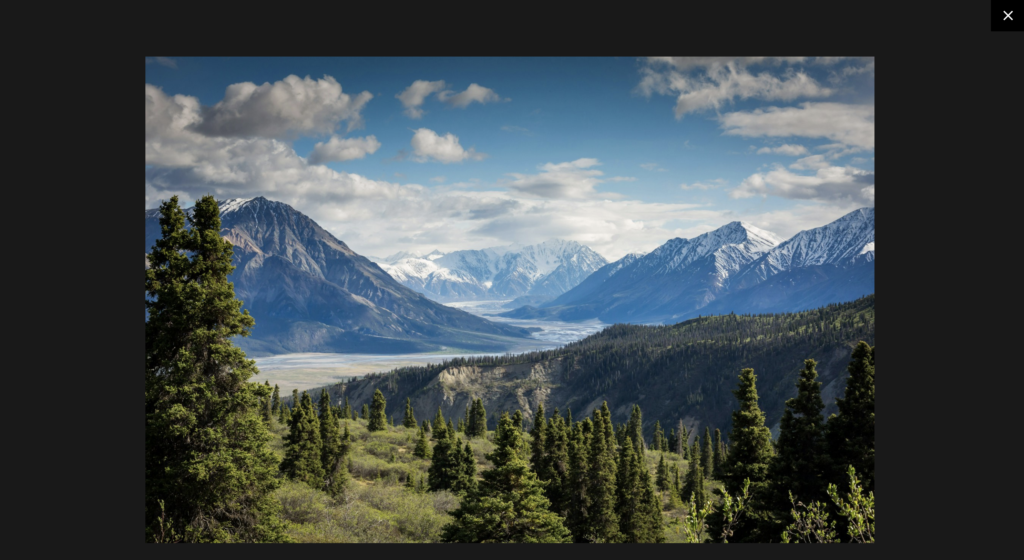
Using MetaSlider Gallery your media will be shown in a gallery window. This first screenshot below shows a photo inside a WordPress post:

After installing MetaSlider Gallery, you can click on the image to see it displayed inside a gallery window.
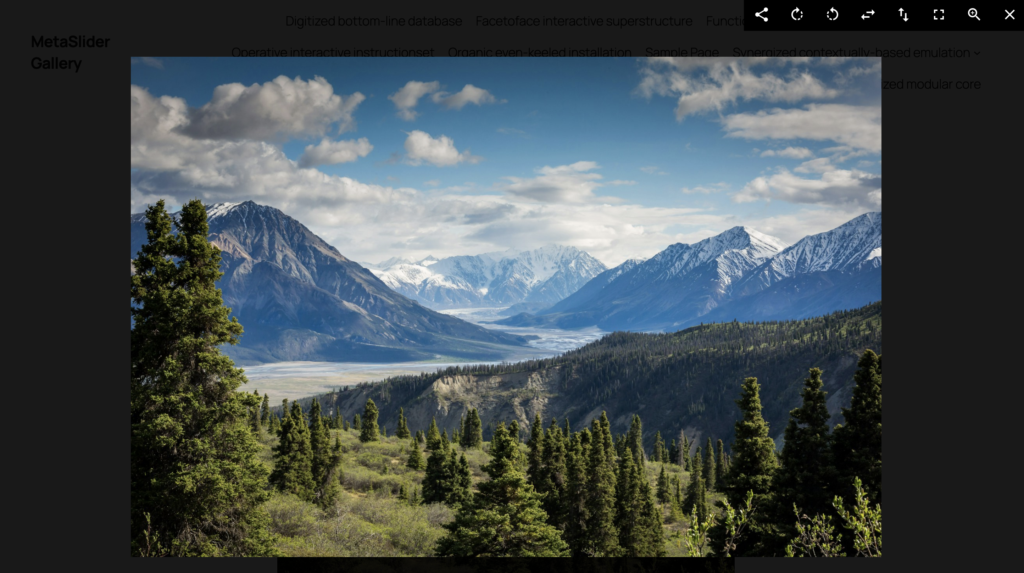
If you’re using the Pro version of MetaSlider Gallery, several extra features will appear in the toolbar, including Social Share, Rotate, Flip, Fullscreen, Zoom, and more. Those Pro features are shown in the screenshot below.
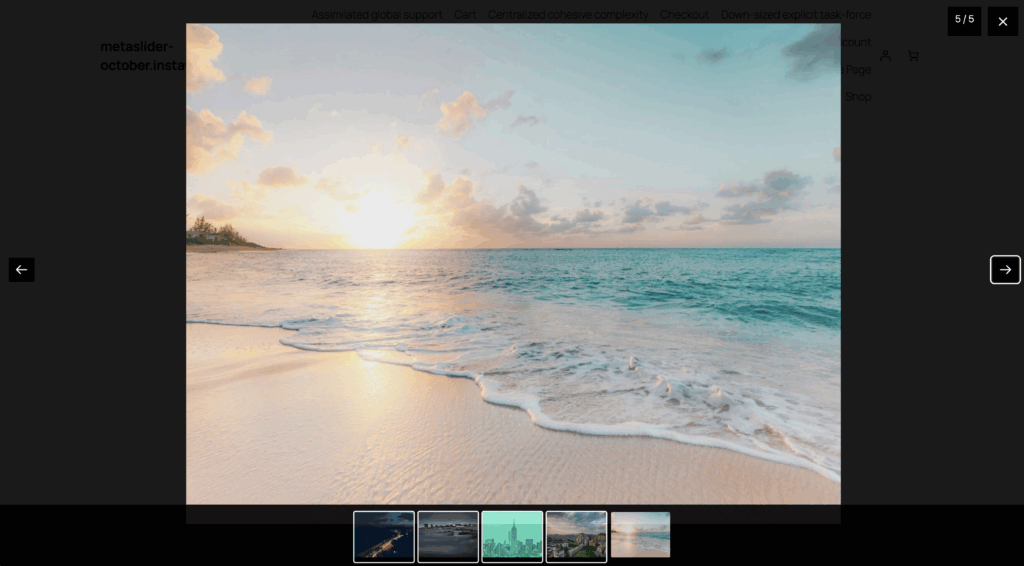
If you’re using MetaSlider Gallery together with a MetaSlider slideshow, your media will be shown a lightbox that looks like this screenshot below. Notice that there is a thumbnail navigation section to allow users to browse the media. There is also a count in the top-right corner showing how many items are in the gallery.
How to Apply the Gallery Automatically #
It is possible to apply the MetaSlider Gallery features automatically to different types of content and in different post types. You’ll find these settings under the “Automatic Mode” tab in the plugin.
The first group of settings allow you to decide what types of media will be shown in gallery windows. The options are:
- Images in post content
- Gallery shortcodes and blocks in post content
- Videos such as HTML5 videos, YouTube embeds, Video embeds in post content
- Images and videos in widgets and sidebars
- Featured images
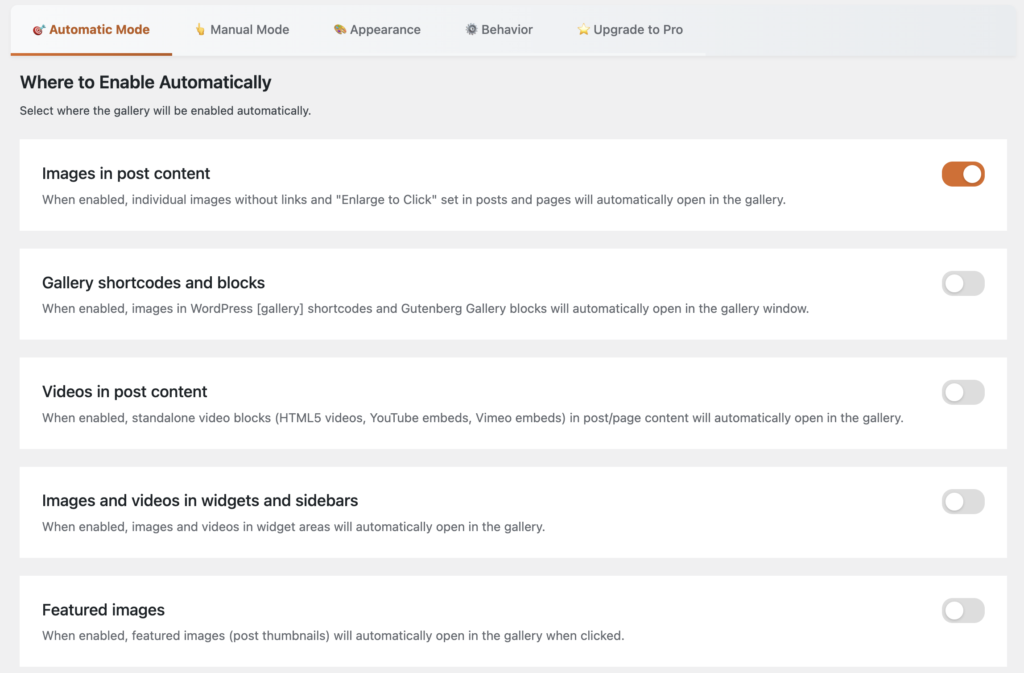
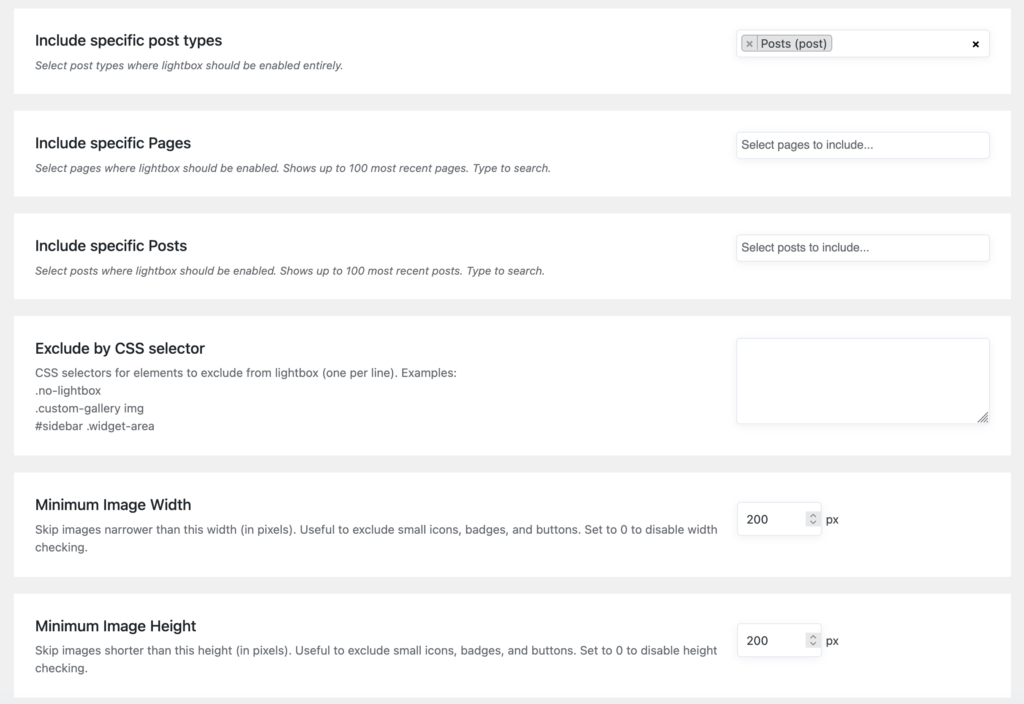
It’s possible to filter these automatic settings further using the “Content Filtering” settings:
- Processing Mode: You can choose either “Inclusion Mode” or “Exclusion Mode”.
- Include / exclude specific post types
- Include / exclude specific Post, Pages or other post types
- Exclude by CSS selector
- Minimum Image Width and Minimum Image Height
How to Apply the Gallery Manually #
Be default, the WordPress core provides a basic lightbox / gallery window option. It’s possible to override this default option with the MetaSlider Gallery plugin. You’ll find these options under the “Manual Mode” tab.
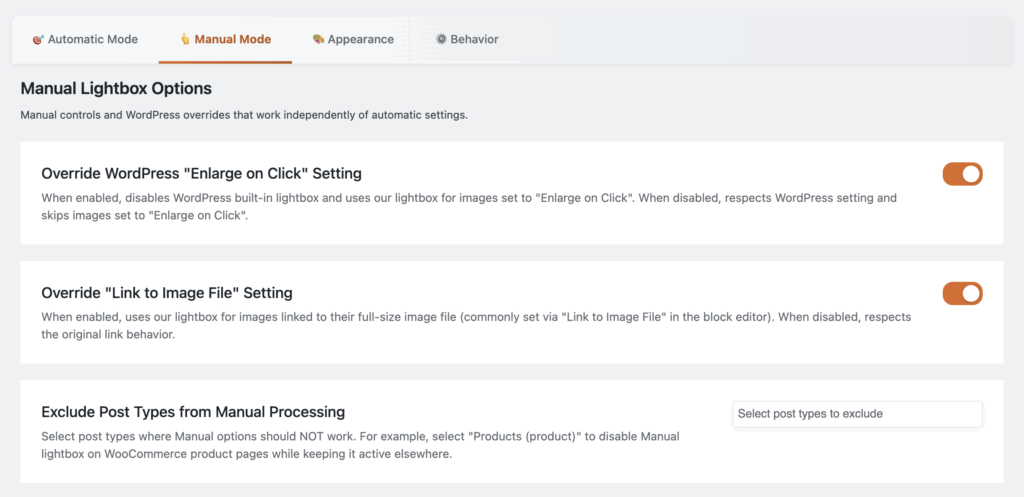
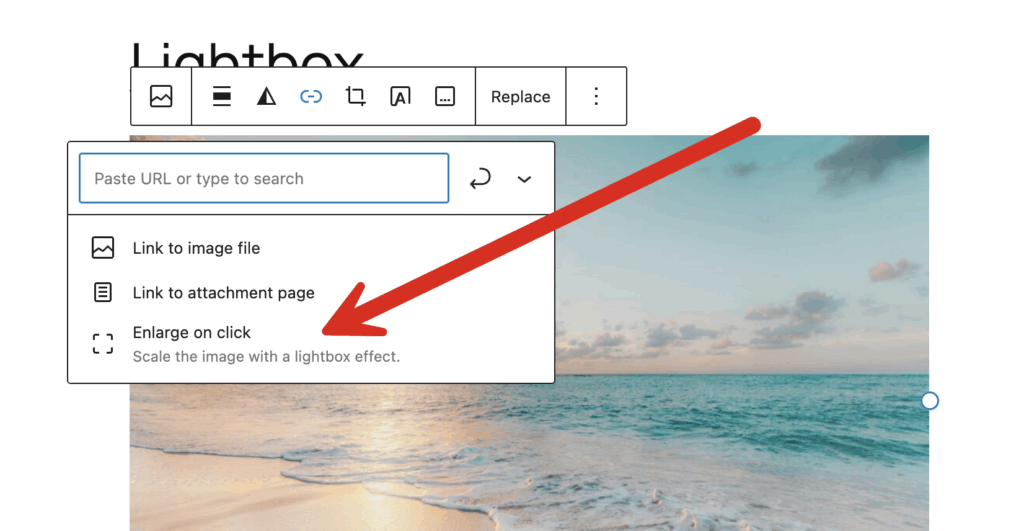
The default WordPress lightbox / gallery window feature is called “Enlarge on Click”. Here’s how to enable it and to add MetaSlider Gallery to an image.
- Select an image in the block editor.
- In the block settings, look for the link icon.
- Choose “Enlarge on click”.
- Now when a user clicks on this image, it will open up in a modal provided by the MetaSlider Gallery plugin.
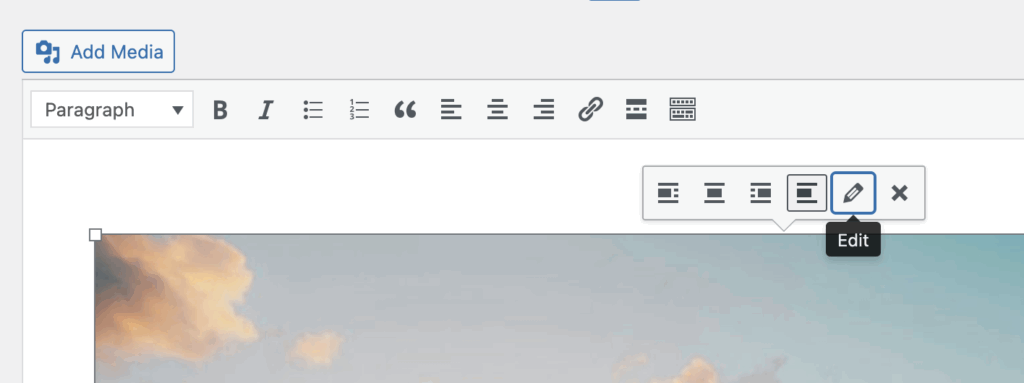
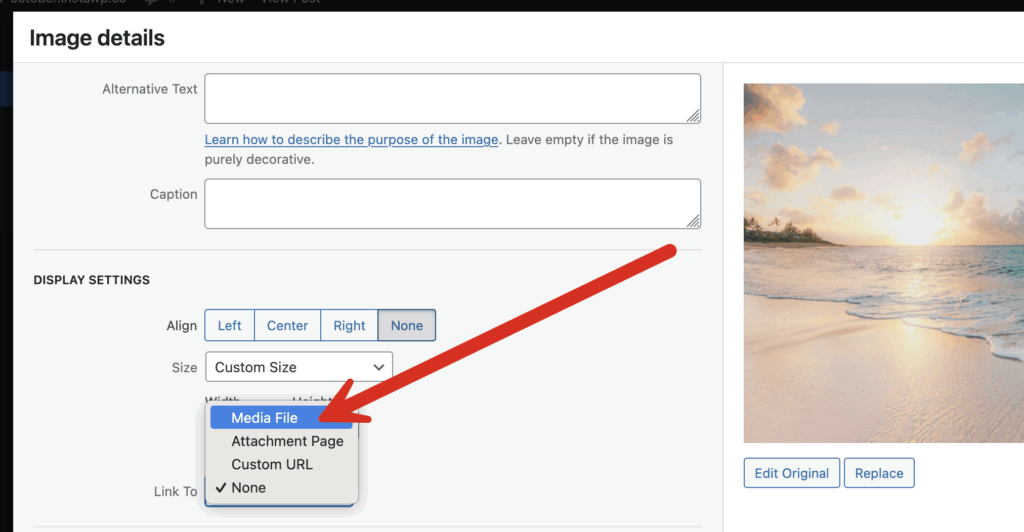
It’s also possible to apply MetaSlider Gallery using the Classic Editor. Look for the pencil icon to edit settings for your image, as in this screenshot below.
- Choose “Media File” for the “Link To” option as in this next screenshot:
How to Apply the Gallery With CSS #
It’s also possible to add MetaSlider Gallery to images, videos or galleries using CSS.
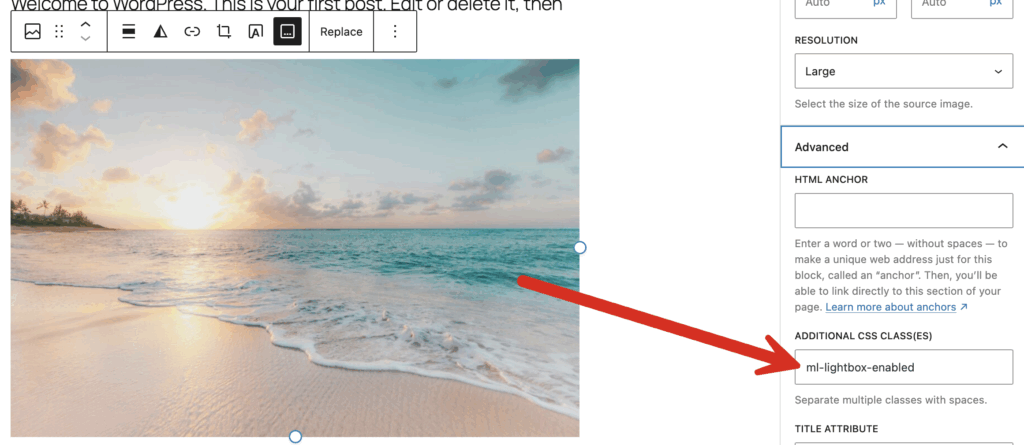
- Select an image or gallery block.
- In the block settings sidebar, scroll to “Advanced”
- Add
ml-lightbox-enabledto “Additional CSS class(es)” as in this screenshot below:
For people who want to use the CSS directly, this code will wrap an image in a gallery window:
<div class="ml-lightbox-enabled">
  <img src="image.jpg" alt="Image" />
</div>