
Table of Contents
The Container Options section of the slideshow editor lets you customize the box that wraps your slideshow — its background color, inner padding, and outer margin.
How to use Container Options #
-
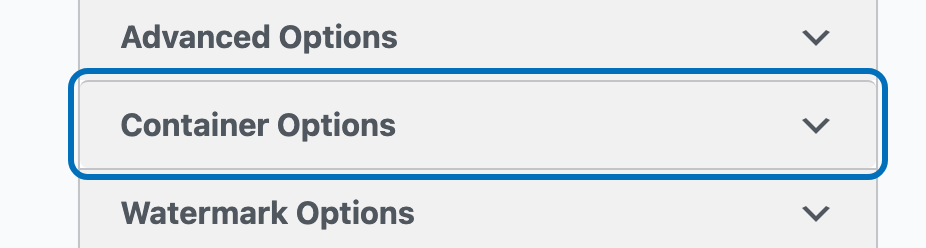
Open the slideshow you want to edit, then look for ‘Container Options’ in the settings panel on the right and click it to expand.
-
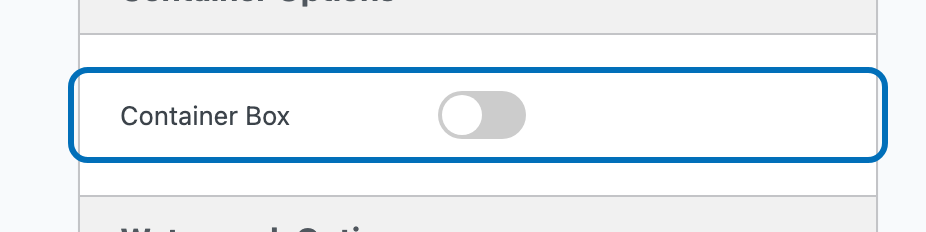
Turn on ‘Container Box’ to customize the slideshow’s container. This requires MetaSlider Slideshow Pro — without it, the toggle appears disabled with an upgrade prompt.
-
With ‘Container Box’ turned on, ‘Background’, ‘Padding’, and ‘Margin’ settings appear underneath it.
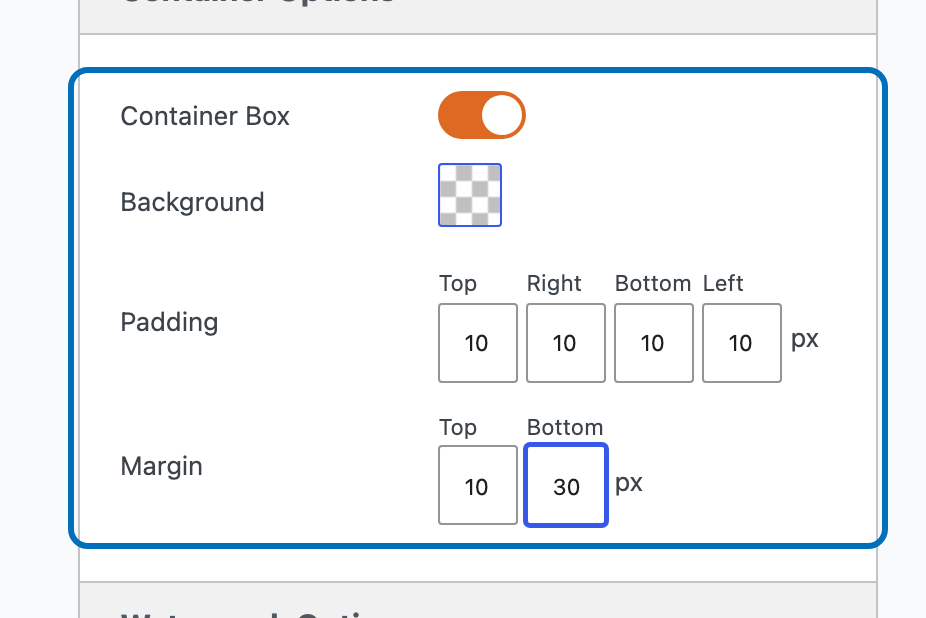
- ‘Background’ is a color picker for the container’s background color. It’s transparent until you choose a color.
- ‘Padding’ (top, right, bottom, left) sets the inner spacing between the container’s edge and the slideshow inside it, 10px on every side by default. Increasing it can shift where arrows and navigation sit on the slideshow.
- ‘Margin’ (top, bottom) sets the outer spacing above and below the container, separating it from the rest of the page — 10px on top and 30px on the bottom by default.
Your slideshow’s container box now has its own background, padding, and margin.