
Every image slide has a caption you can write and style with a visual editor, so you can center your text, change its size and color, and add links, icons, or a button without writing any HTML.
A slide can take its caption from the media library instead of from you, and those two sources are read-only, so the formatting toolbar only appears while ‘Manual entry’ is selected. That is the setting a new slide starts on.
How to Center Caption Text #
-
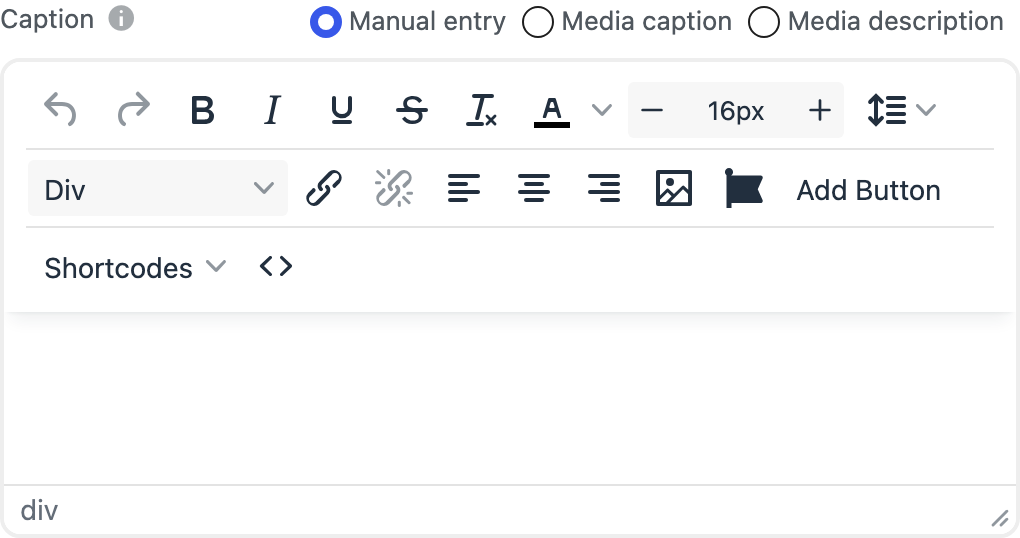
Open the slideshow you want to edit. Each slide opens on its General tab, where you will find the ‘Caption’ field.
-
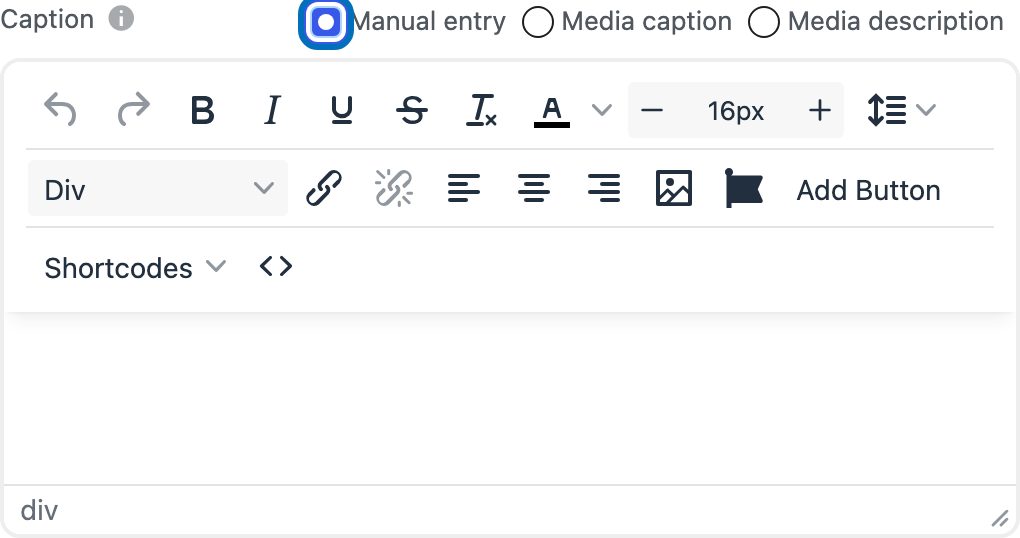
Check that ‘Manual entry’ is selected above the caption box. It is selected already unless you changed it, and the editor’s toolbar is your sign that you are on the right source.
-
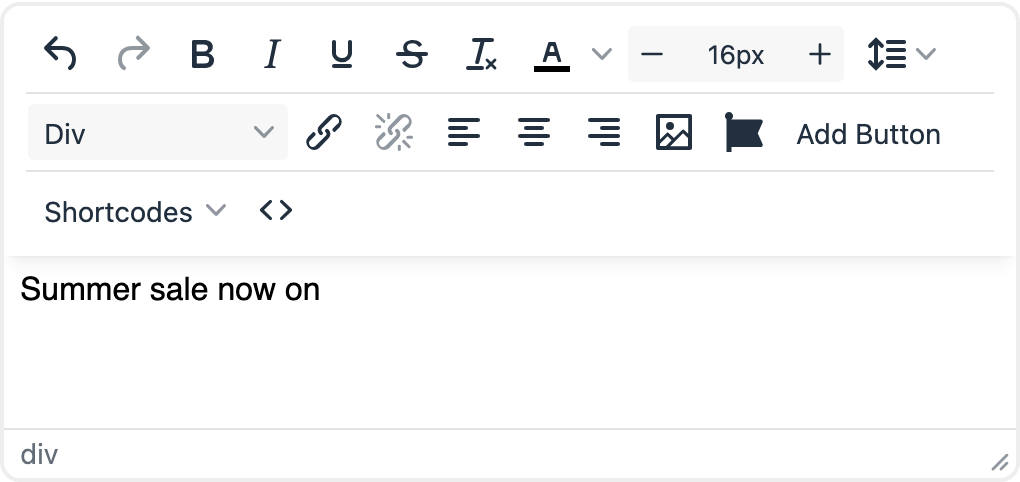
Type your caption, then select the text you want to center.
-
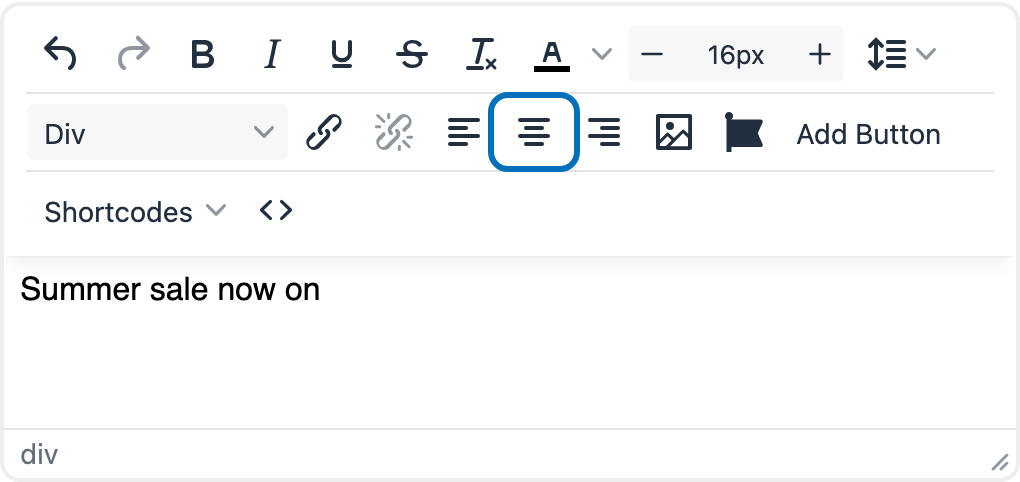
Click the center alignment button in the toolbar. Your text moves to the middle of the caption, and the buttons on either side of it align your text left or right.
-
Click ‘Save’ to keep the change.

Your caption is now centered, and the slideshow preview shows it in place.
More Formatting Options #
The same toolbar carries the rest of the caption formatting:
- Bold, italic, underline, and strikethrough for emphasis, with a button that clears formatting again.
- A text color picker, a font size box, and a line height list to control how your caption reads. The color you pick here overrides the ‘Caption Link Color’ option in the Theme area of the right sidebar.
- A paragraph styles list, for headings and other block formats.
- Link and unlink, to turn any part of your caption into a link.
- ‘Add Image’, ‘Add Icon’, and ‘Add Button’, which insert those elements into the caption for you.
- ‘Shortcodes’, which hides the caption on the devices you choose.
- A source code button, if you would rather edit the caption’s HTML directly.
If the toolbar is missing and you only see a plain text box, open MetaSlider’s Settings & Help screen and check that ‘Enable TinyMCE’ is turned on. It is on unless somebody turned it off.