The MetaSlider Gallery plugin can connect to the core WordPress gallery feature. This supports both the block editor and the Classic Editor.
Using MetaSlider Gallery, your media will be shown in a gallery that looks like this screenshot below. In fact, you can click on the “Open in lightbox” buttons to get a live demo of how this works. Each image in the gallery can have its own lightbox settings.
You can really enhance your image galleries with a pop-up window. Visitors can view your images and then open them inside a gallery window. This can make the images larger and also darken the background so it’s easier to see the image.
There are two approaches to adding a pop-up window to your image galleries: Automatic Mode and Manual Mode.




How to Apply the Gallery Window Automatically #
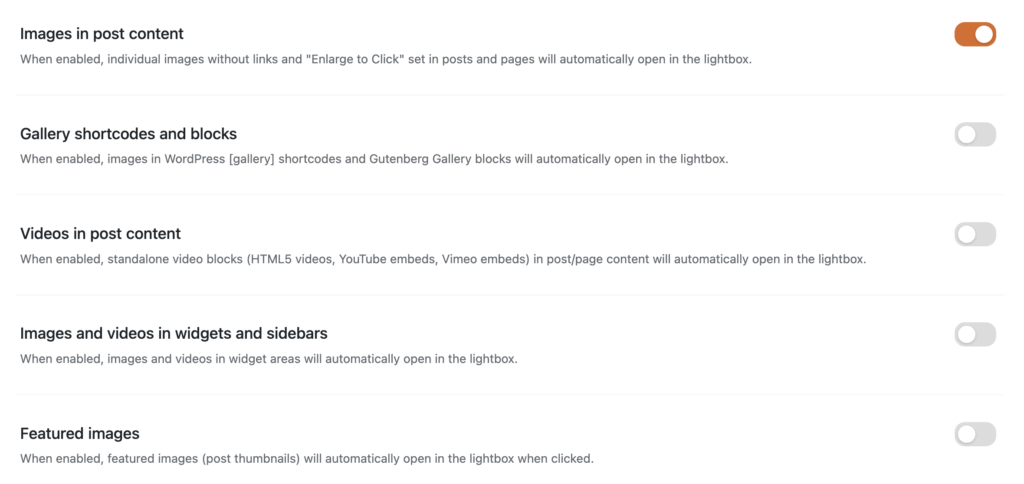
It is possible to apply the MetaSlider Gallery features automatically to your image. You’ll find this setting under the “Automatic Mode” tab in the plugin. Enable the setting labeled “Images in post content”.
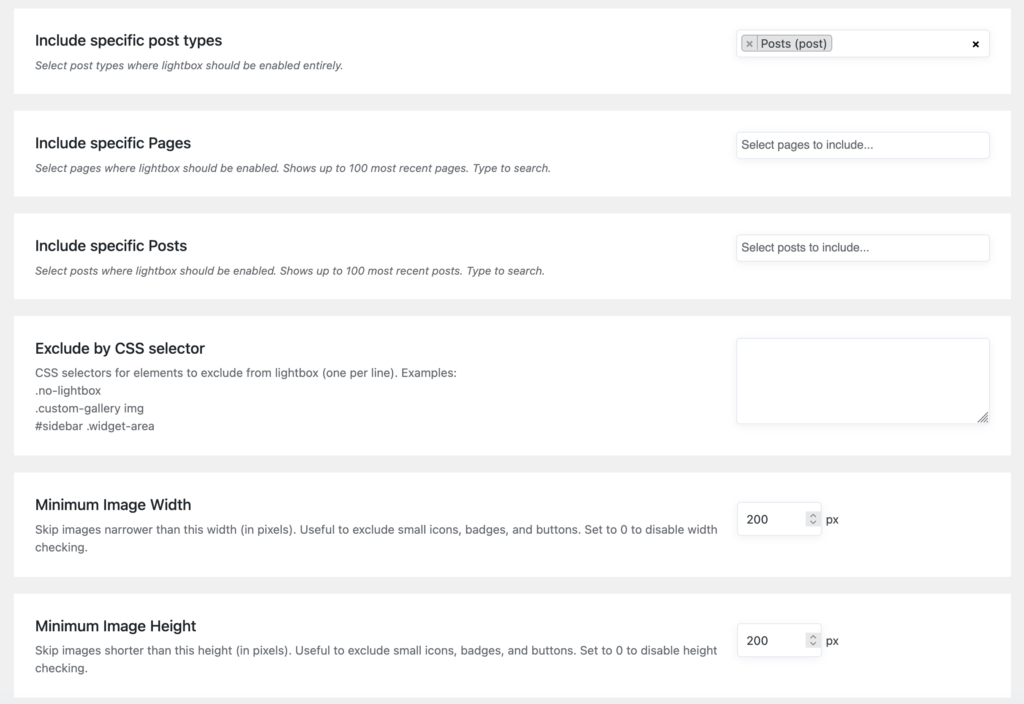
It’s possible to filter this automatic settings further using the “Content Filtering” settings:
- Processing Mode: You can choose either “Inclusion Mode” or “Exclusion Mode”.
- Include / exclude specific post types
- Include / exclude specific Post, Pages or other post types
- Exclude by CSS selector
- Minimum Image Width and Minimum Image Height
How to Apply the Gallery Window Manually #
Be default, the WordPress core provides a basic gallery window option. It’s possible to override this default pop-up with the MetaSlider Gallery plugin. You’ll find these options under the “Manual Mode” tab.
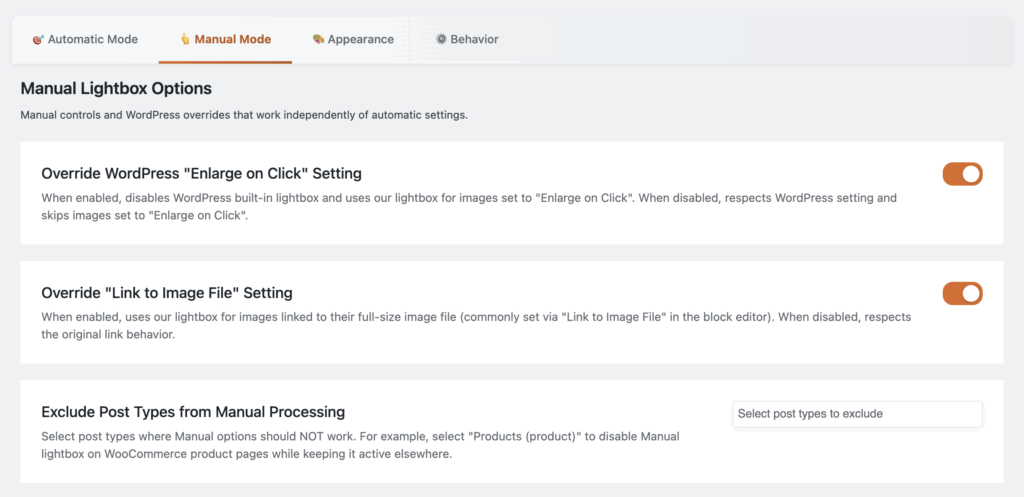
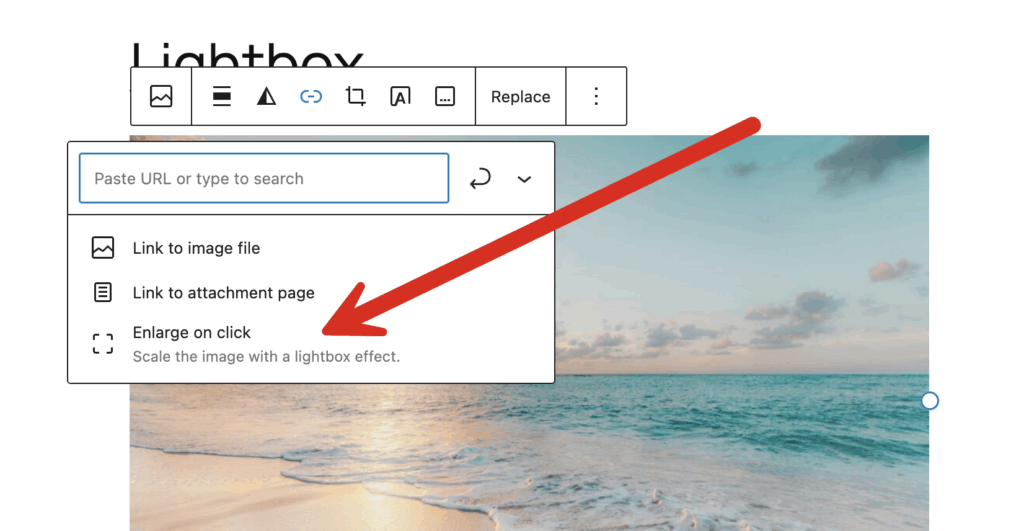
The default WordPress pop-up feature is called “Enlarge on Click”. Here’s how to enable it and to add MetaSlider Gallery to an image.
- Select an image in the block editor.
- In the block settings, look for the link icon.
- Choose “Enlarge on click”.
- Now when a user clicks on this image, it will open up in a modal provided by the MetaSlider Lightbox plugin.
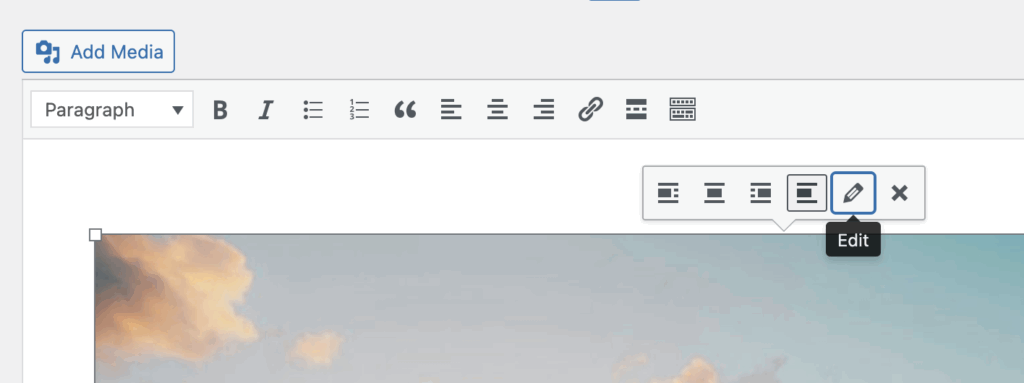
It’s also possible to apply MetaSlider Gallery using the Classic Editor. Look for the pencil icon to edit settings for your image, as in this screenshot below.
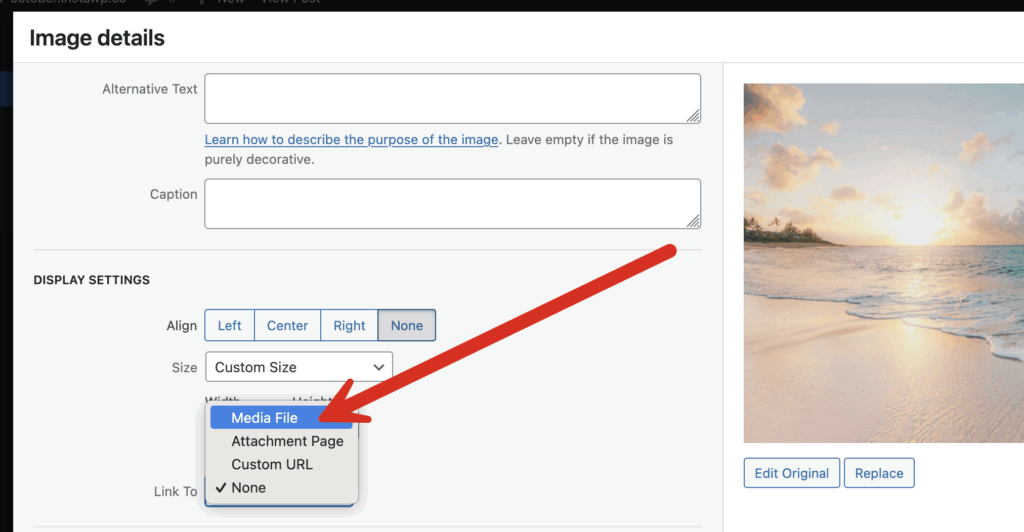
- Choose “Media File” for the “Link To” option as in this next screenshot:
How to Apply the Gallery Window With CSS #
It’s also possible to add MetaSlider Gallery to galleries using CSS.
- Select a gallery block.
- In the block settings sidebar, scroll to “Advanced”
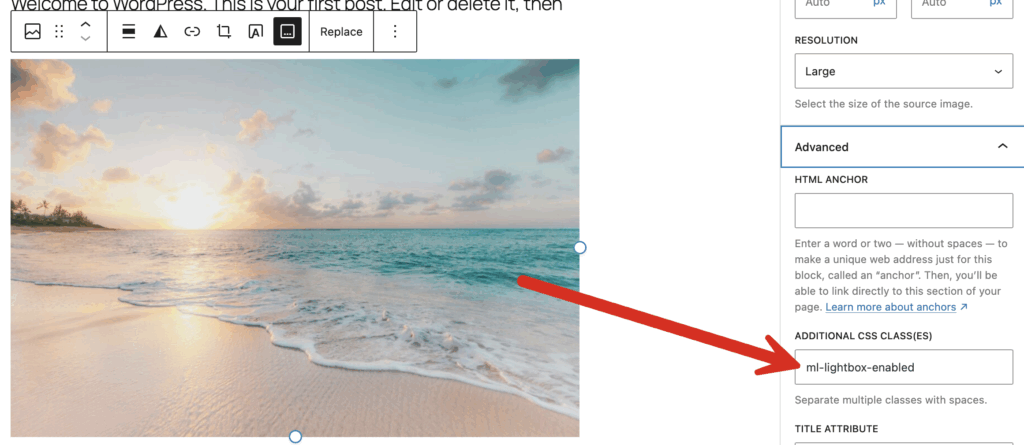
- Add
ml-lightbox-enabledto “Additional CSS class(es)” as in this screenshot below: