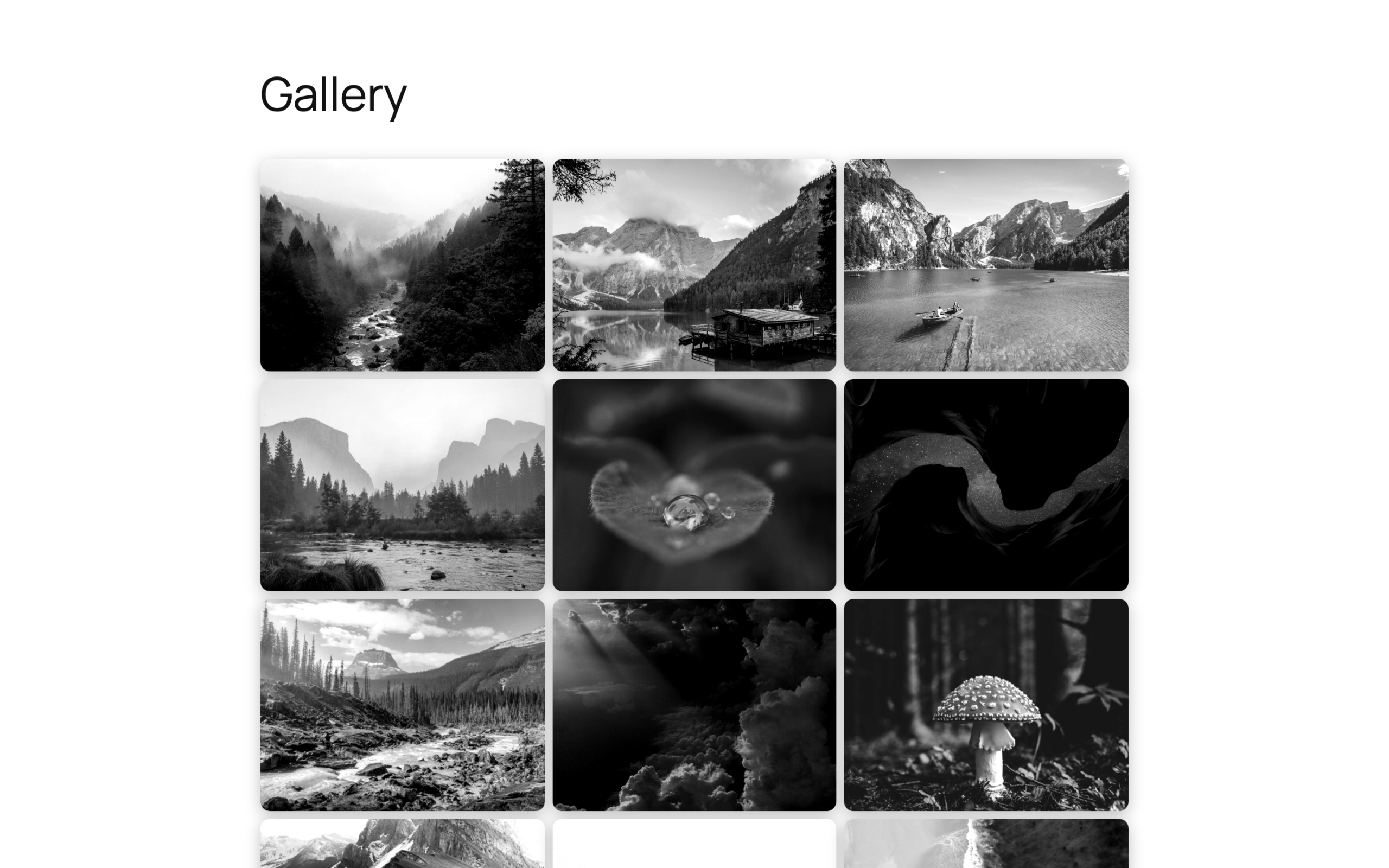
The Image Styles panel lets you restyle every image in a MetaSlider Gallery at once, so the whole grid shares a consistent look without editing any image files. The preview updates as you go, so you can see each change before you save.
Available Filters #
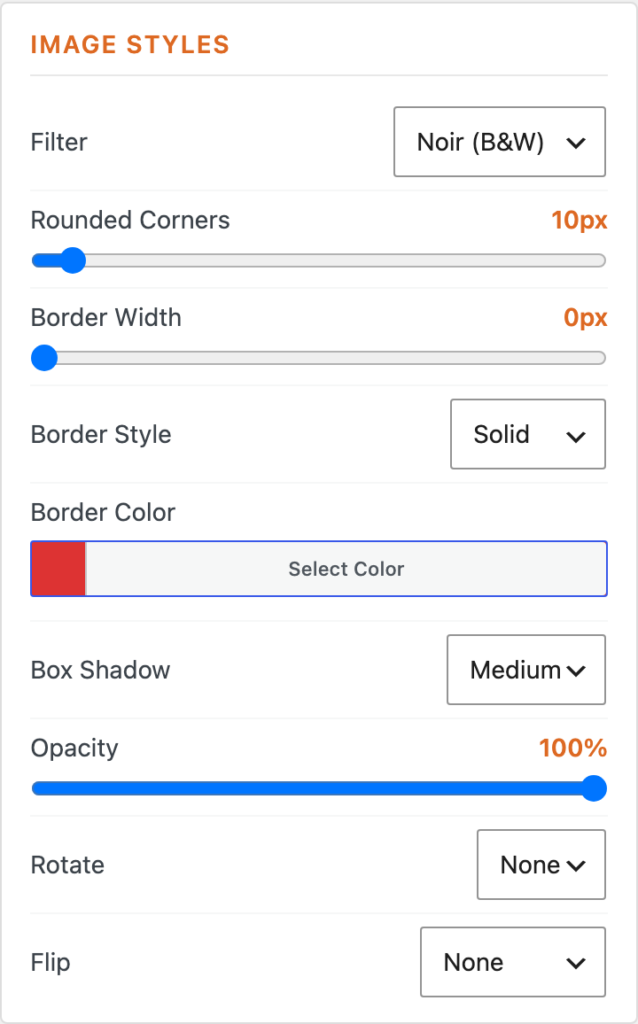
You can control all of the following from the one panel:
- ‘Filter’: apply a photo filter such as ‘Noir (B&W)’, ‘Vintage’, ‘Golden Hour’, ‘Vivid’, or ‘Dramatic’.
- ‘Rounded Corners’: drag the slider to round the corners of every image, measured in pixels.
- ‘Border Width’, ‘Border Style’, and ‘Border Color’: add a border and choose its thickness, line style, and color.
- ‘Box Shadow’: cast a ‘Light’, ‘Medium’, or ‘Heavy’ drop shadow behind each image.
- ‘Opacity’: drag the slider to fade every image, measured as a percentage.
- ‘Rotate’ and ‘Flip’: turn every image by a fixed angle or mirror it horizontally, vertically, or both.
How to style your gallery images #
Open the gallery you want to style, then find the ‘Image Styles’ panel in the settings sidebar on the right.
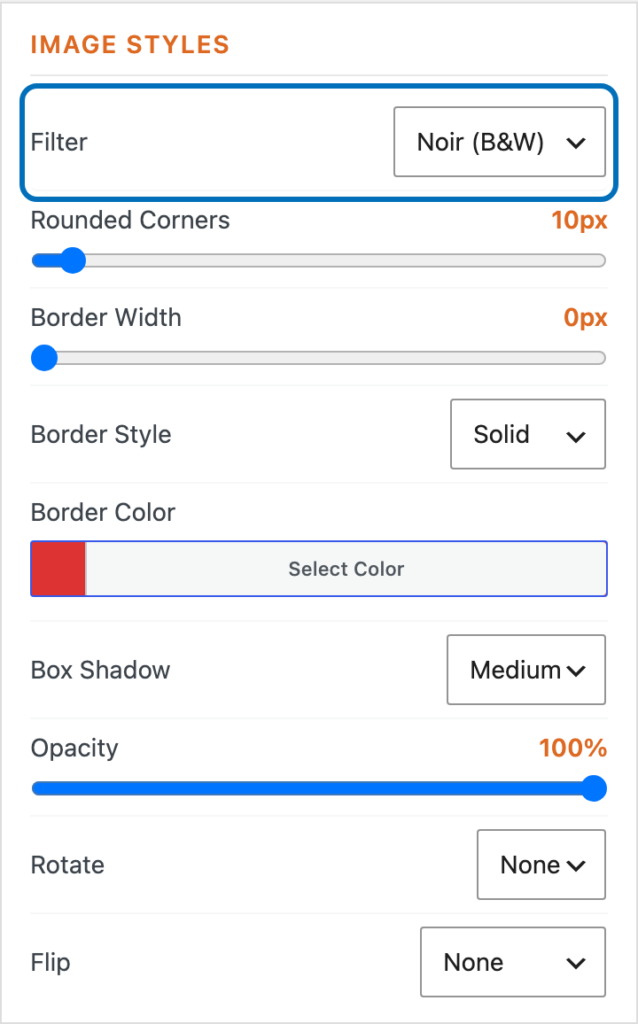
Pick a look from the ‘Filter’ menu. The preview grid updates instantly, so you can compare presets like ‘Noir (B&W)’, ‘Vintage’, or ‘Vivid’ before you commit.
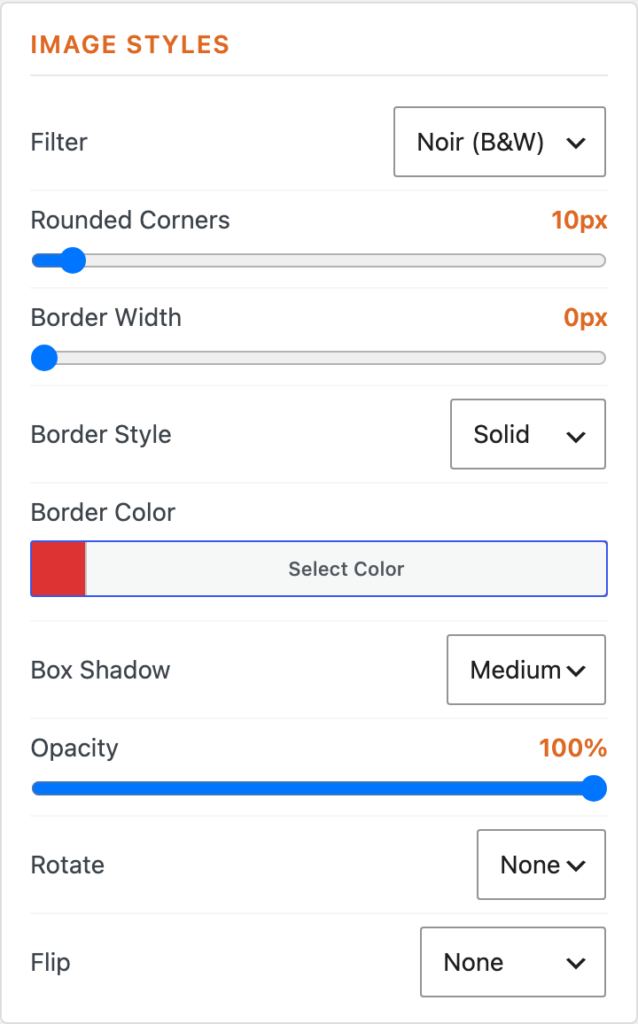
Now you can fine-tune the rest with the controls below the filter. Drag the ‘Rounded Corners’ and ‘Opacity’ sliders, add a border or box shadow, and rotate or flip if you need to. Every change shows up in the preview right away.
Click ‘Save Gallery’ to apply your styles to the live gallery.
Every image in your gallery now shares the styling you chose. Here is how a styled gallery looks on your live site.