
MetaSlider can build a slide from a video hosted on livid.com: you paste the video’s link and MetaSlider creates the embedded player for you. This works in the free plugin, and every video keeps its own playback settings.
How to Add a Livid Video Slide #
-
On livid.com, find the video you want in your library. Click the three dots on it, then choose ‘Share and Embed’.
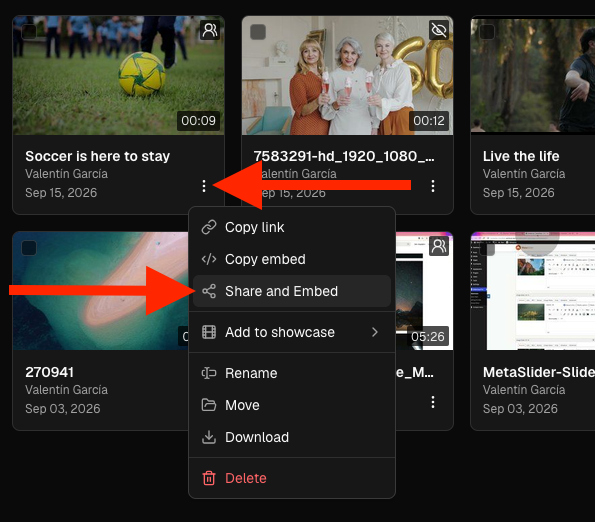
-
In the ‘Share & Embed’ window, check that the video is set to ‘Public’ and that ‘Enable Embedding’ is on, then click ‘Copy link’. The video has to be public and allow embedding for it to play in your slideshow.
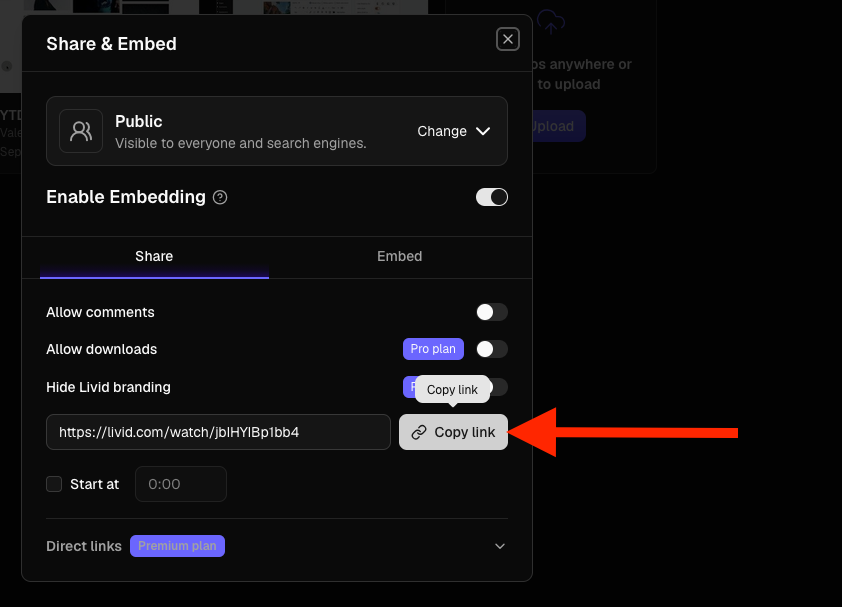
-
Open the slideshow you want to edit, then click ‘Add a new slide’ above the slide list. In the window that opens, click ‘Livid Video’ on the left.
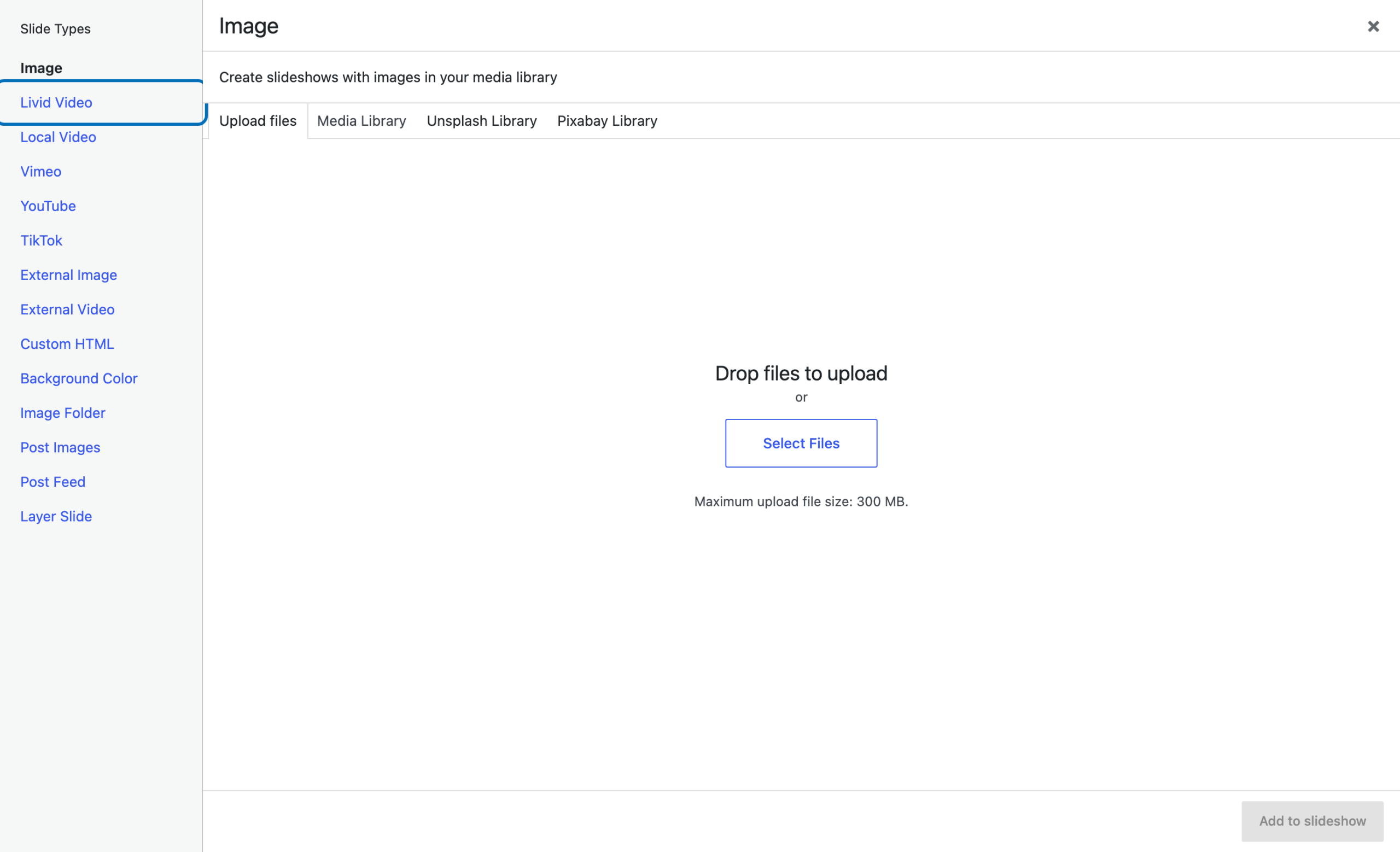
-
Paste the link into the ‘Enter the URL of a Livid video’ box. MetaSlider checks the link and shows a preview of the player, so you can confirm you picked the right video. Click ‘Add to slideshow’ to add it as a new slide.
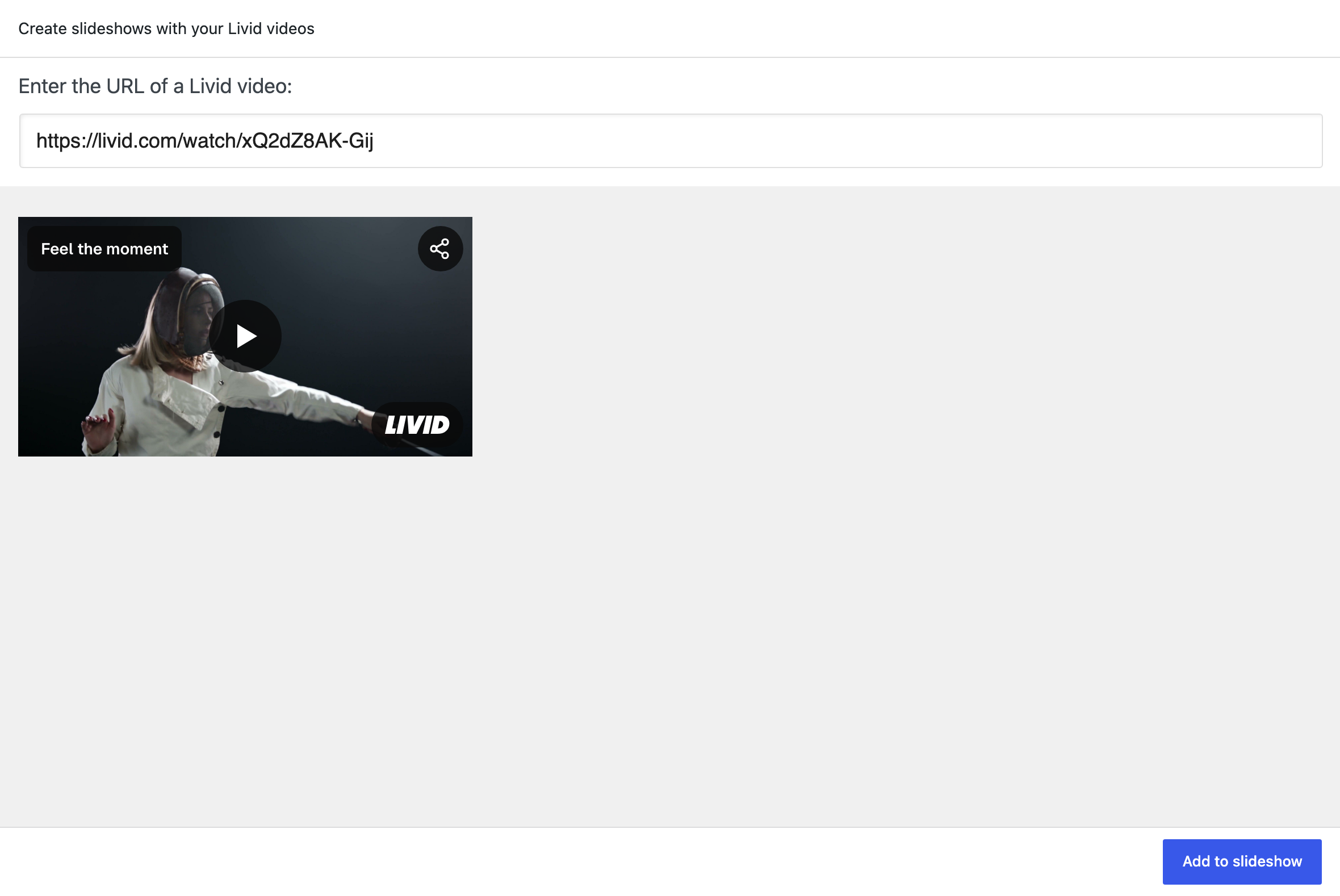
-
Back in the slide list, your new slide has its own playback settings. You can change the video link, and turn ‘Mute video’, ‘Show controls’, ‘Auto play’, ‘Lazy load video’ and ‘Loop video’ on or off for this slide on its own.
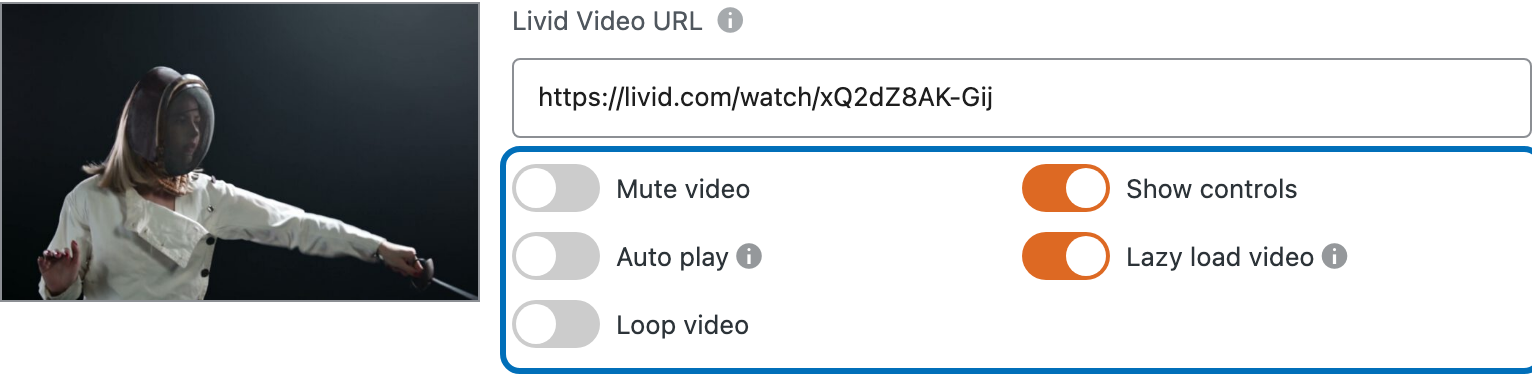
‘Lazy load video’ starts on. It shows the video’s thumbnail with a play button, and only loads the player once a visitor clicks it, which keeps your page light when a slideshow holds several videos. Turning ‘Auto play’ on also mutes the video, because browsers only let a video start on its own when it has no sound.
‘Show controls’ only works when the video sits on a Livid Pro or Premium account. On a free Livid account the player always shows its own controls, whichever way you set it.
Your slideshow now has a new slide that plays your Livid video.