The MetaSlider Gallery plugin has a wide range of design options to allow to customize the gallery effect. Go to the “Settings” area and click the “Appearance” tab.
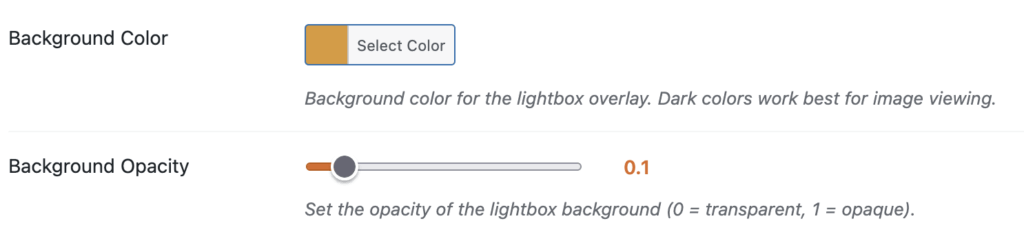
Background and Overlay #
These settings allow you to customize the gallery background and overlay appearance.
- Background Color: This controls the color that appears behind your media in the gallery overlay.
- Background Opacity: You can choose the opacity of the gallery background (0 = transparent, 1 = opaque).
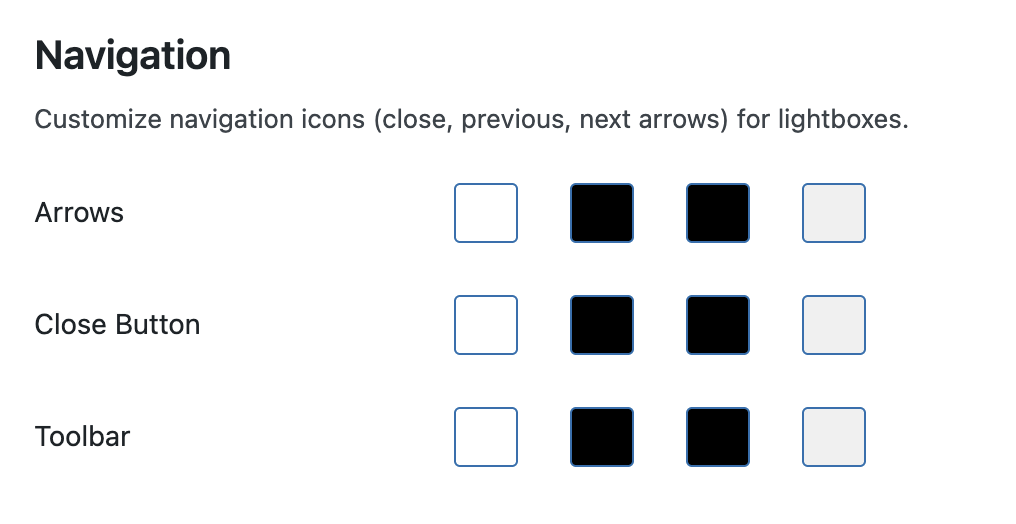
Navigation Icons #
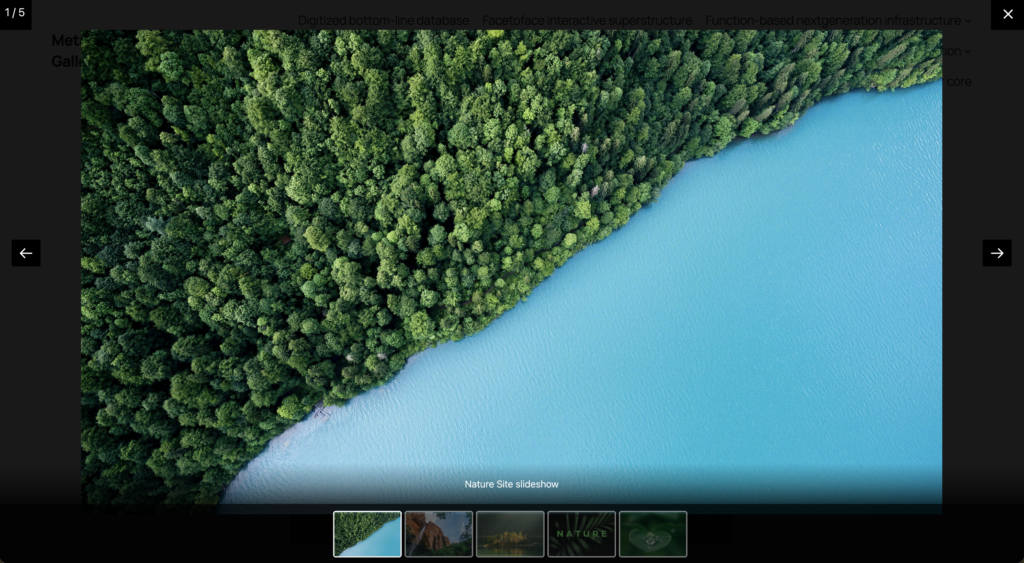
These settings allow you to customize navigation icons (close, previous, next arrows) that appear in all gallery windows.
This next screenshot shows the location of these icons on a gallery window, using the MetaSlider Slideshow plugin:
Open in Gallery Buttons #
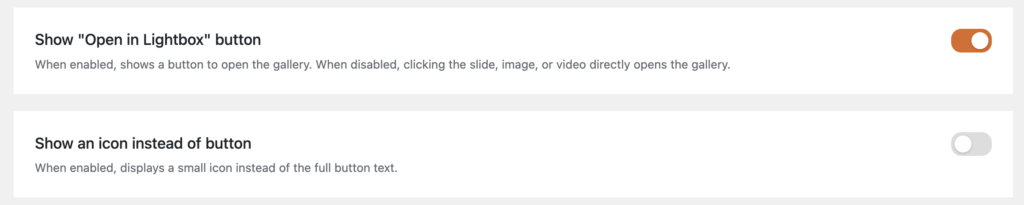
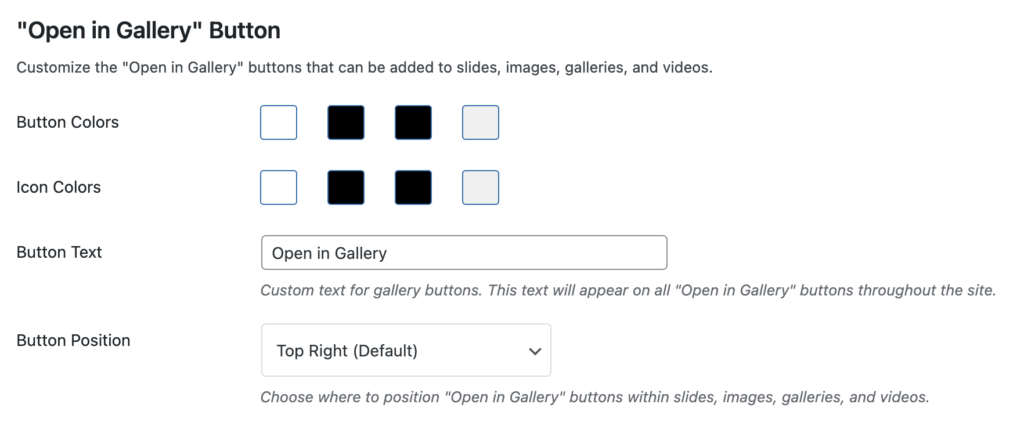
These settings allow you to customize the “Open in Gallery” option that can be added to media.
This next screenshot shows how the “Open in Gallery” button appears on images.
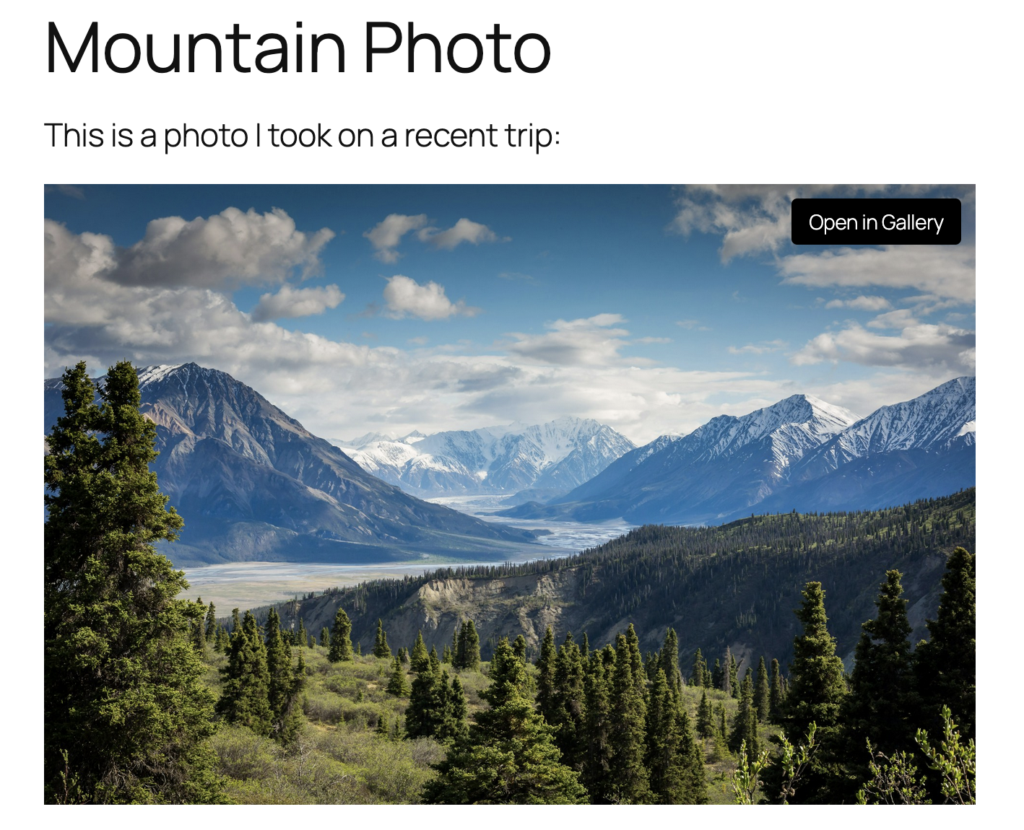
This feature can be enabled via the “Behavior” tab in the plugin. It can also be changed from a button into a icon.