Table of Contents
This feature requires the MetaSlider Slideshow Pro plugin.
Layer Slides are included in MetaSlider Pro.
Layer Slides allow you to add elements on top of an image or video.
You can add text, colors, shortcodes, animations and even other images or videos on top of an image or video.
Add a new Layer Slide to your slideshow #
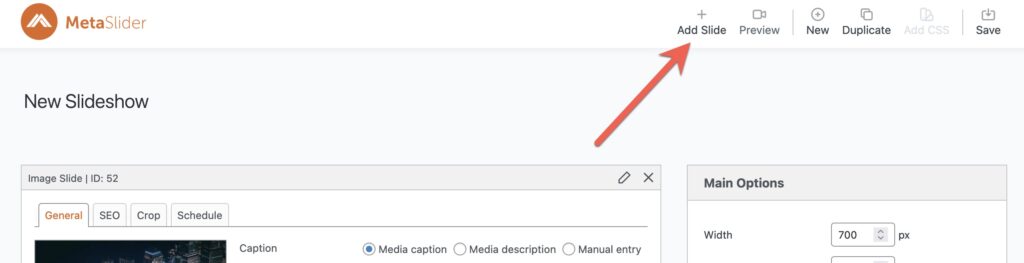
- Click the “Add Slide” button to launch the Media Manager.
- In the left menu of the Media Manager, select “Layer Slide”.
- From here you can select a background image for the slide, or upload a new image.
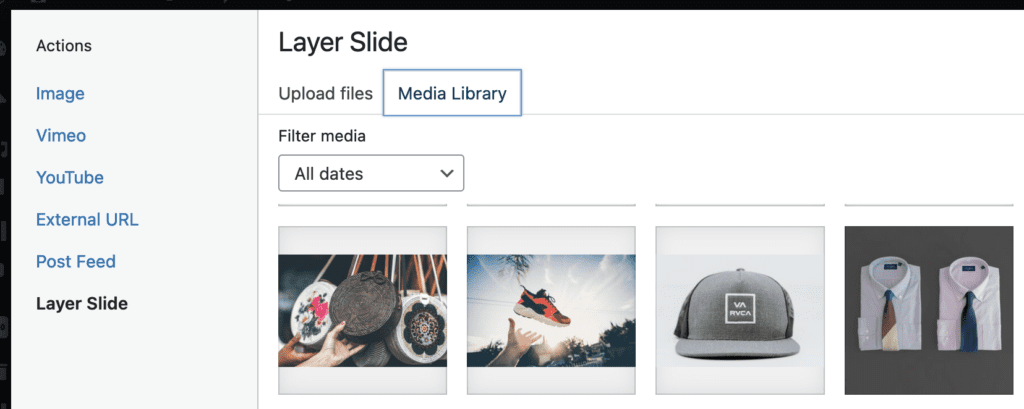
- Click the “Add to slideshow” button.
- The Media Manager will close and a Layer Slide will be added to your slideshow.
How to use the Layer Editor #
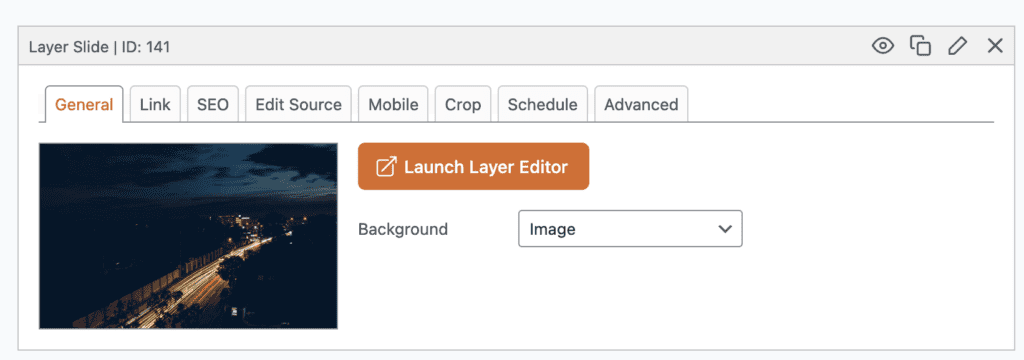
- Use the “Background” option to choose between using a background image or video.
- Click the “Launch Layer Editor” button to open the layer editor screen.
- Click the “New Layer” button located at the top left of the editor to add a new layer.
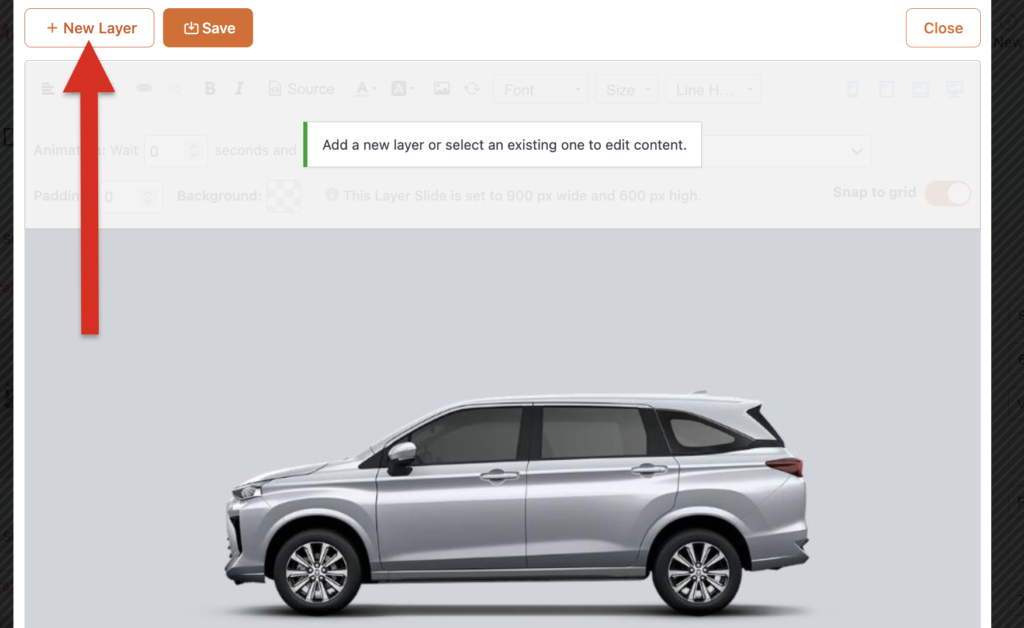
Layers can include plain text, formatted text, HTML, images, videos, and even shortcodes. Use the buttons in the main toolbar to add any element you need.
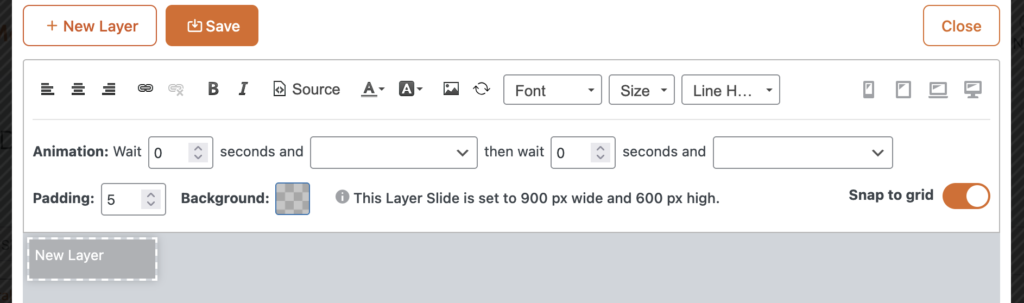
You can adjust the padding and background color of each layer by using the options located on the bottom row of the toolbar.
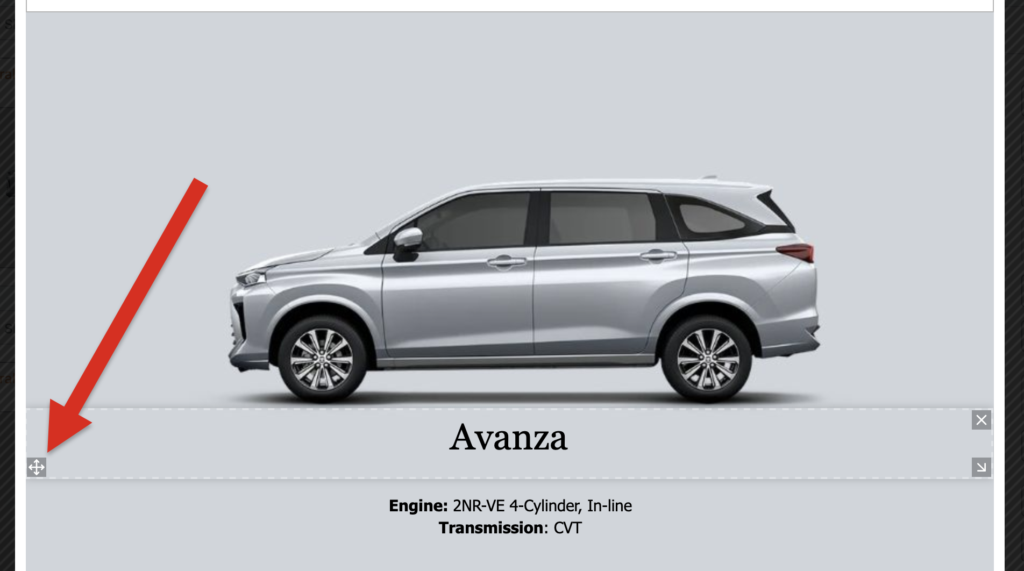
- To reposition a layer, use the drag and drop handle located at the bottom left of the layer.
- To resize a layer, use the resize handle located at the bottom right of the layer.
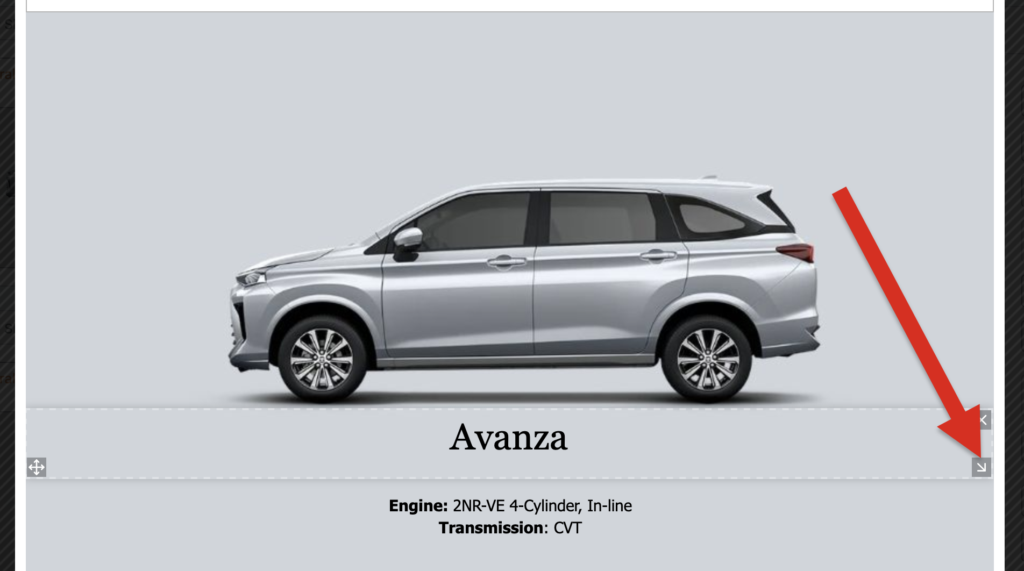
- To delete a layer, click the delete icon located in the top right of the layer.
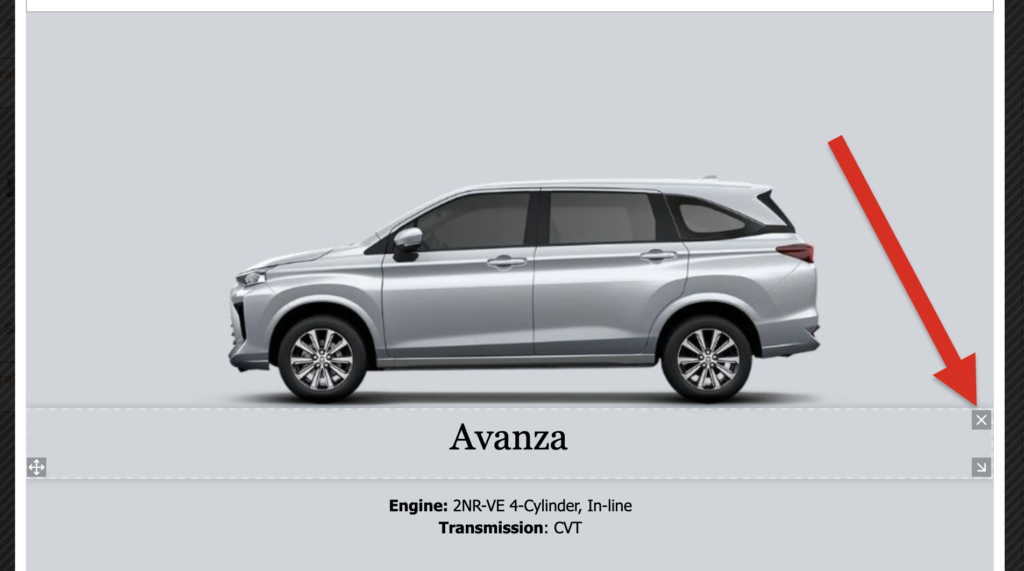
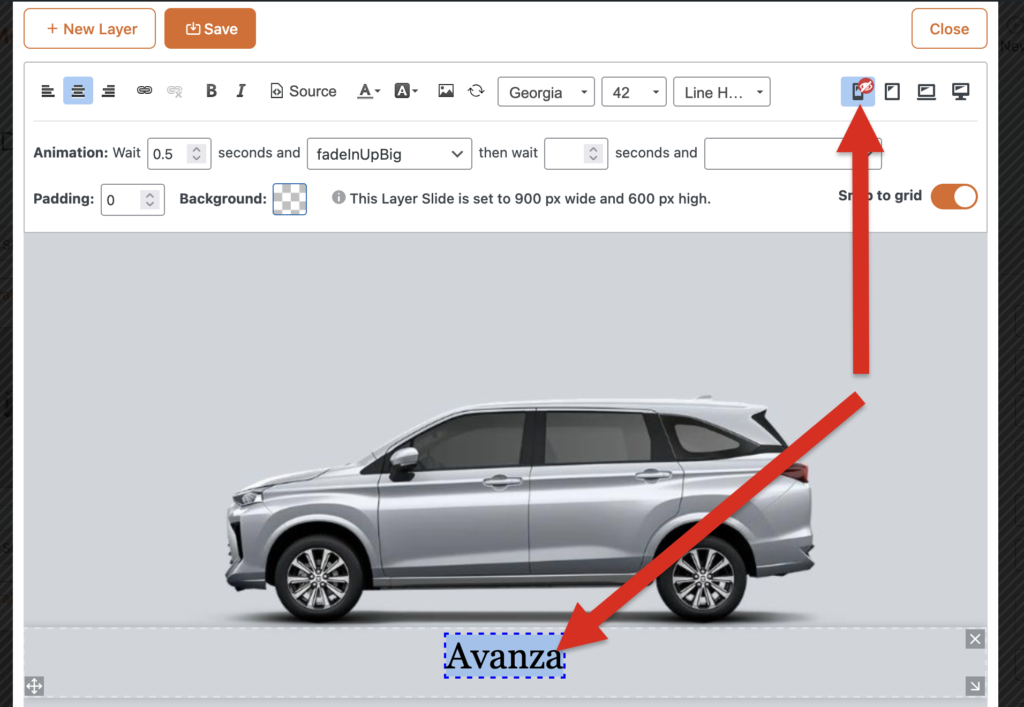
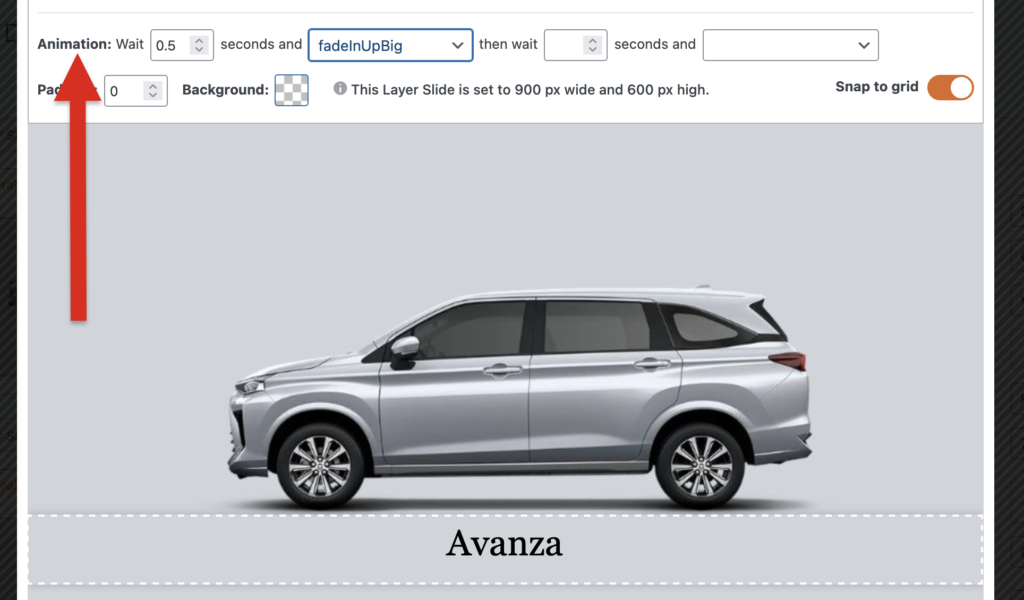
- When you have a layer selected you can make changes such as adding text, padding, background colors, or other changes. You can also add animations. These animations can delay the entry of this layer into the slideshow and all them to enter the display with an animated effect. More on animations.
- If you do end up with several layers, it’s possible that they may become busy on smaller screens. It is possible to hide the content of some layers on specific device sizes. That setting is shown in the screenshot below. More on hiding elements.