
The October releases of MetaSlider are now available.
There’s a new version of the MetaSlider Lightbox plugin. You can display your slideshow images in a beautiful full-screen view. The plugin can also add a lightbox effect to any image, gallery, or video in your WordPress posts.
In the main MetaSlider plugin, you’ll find a deep integration with WooCommerce, including a new slide type and new eCommerce themes.
We’re building the most user-friendly image tools in WordPress, and this release is another step towards that.
Table of Contents
A huge update for MetaSlider Lightbox
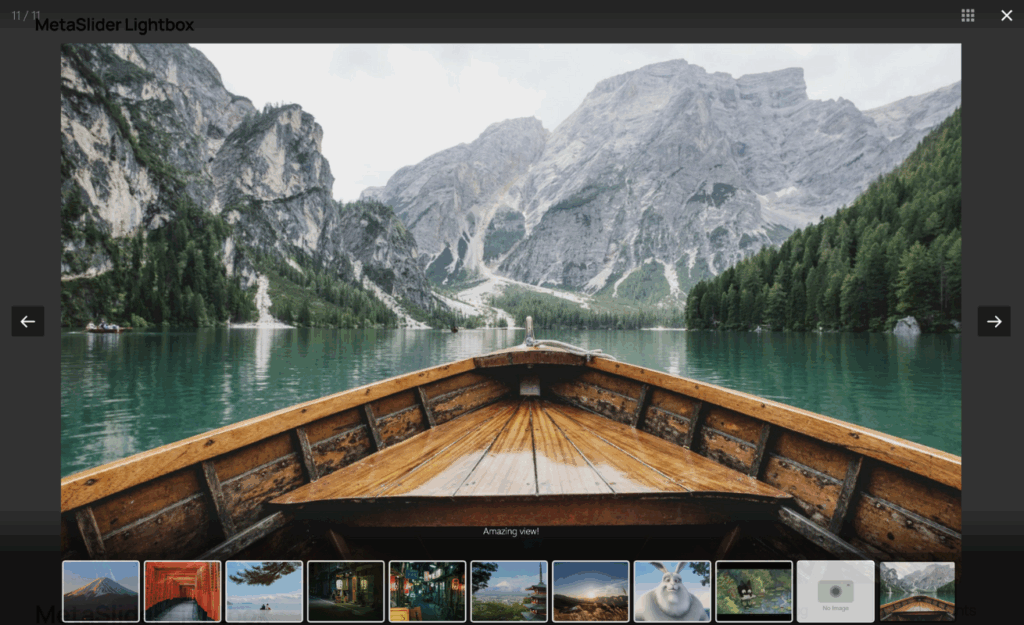
We’ve just released a major update to the MetaSlider Lightbox plugin. This plugin is completely free, and you can use the plugin to turn any slideshow into a full-screen display. This screenshot gives a preview of how the lightbox will appear. You have the option to show the thumbnail navigation, which you can see below the main image.
This plugin can also add lightbox effects to any image, gallery, or video in your WordPress posts.
New WooCommerce slide type
New for MetaSlider Pro users is a WooCommerce slide type. This allows you to show product details on your slide, as well as ratings and “Add to cart” buttons.
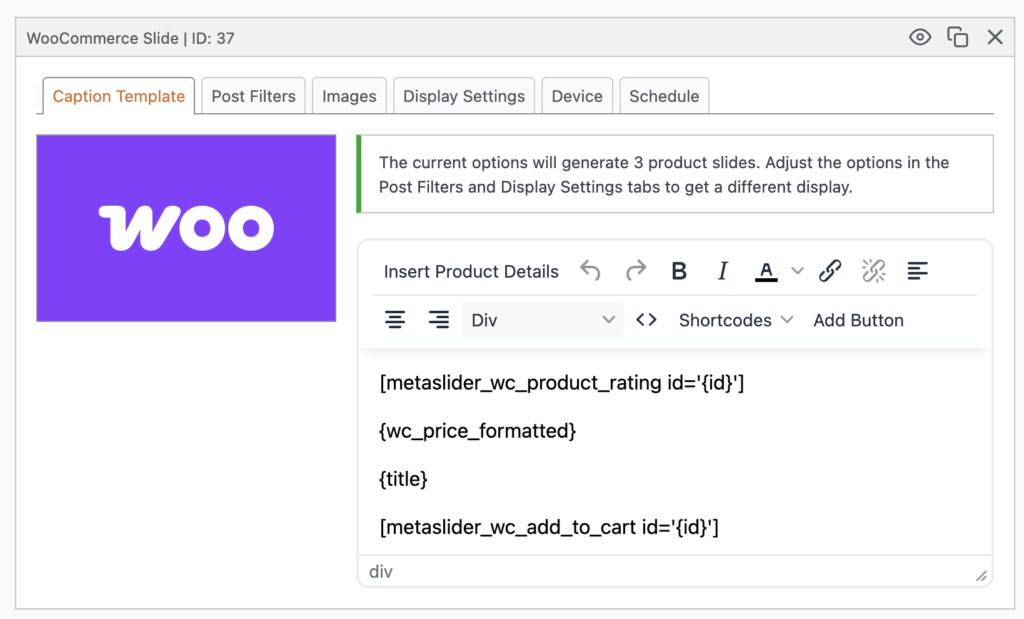
Just one WooCommerce slide will allow you to customize the display for all your WooCommerce products. By default, the options will generate 3 product slides. You can adjust the options in the “Post Filters” and “Display Settings” tabs to get a different display.
The “Caption Template” tab allows you to configure the product details shown on the slides, as in this screenshot below.
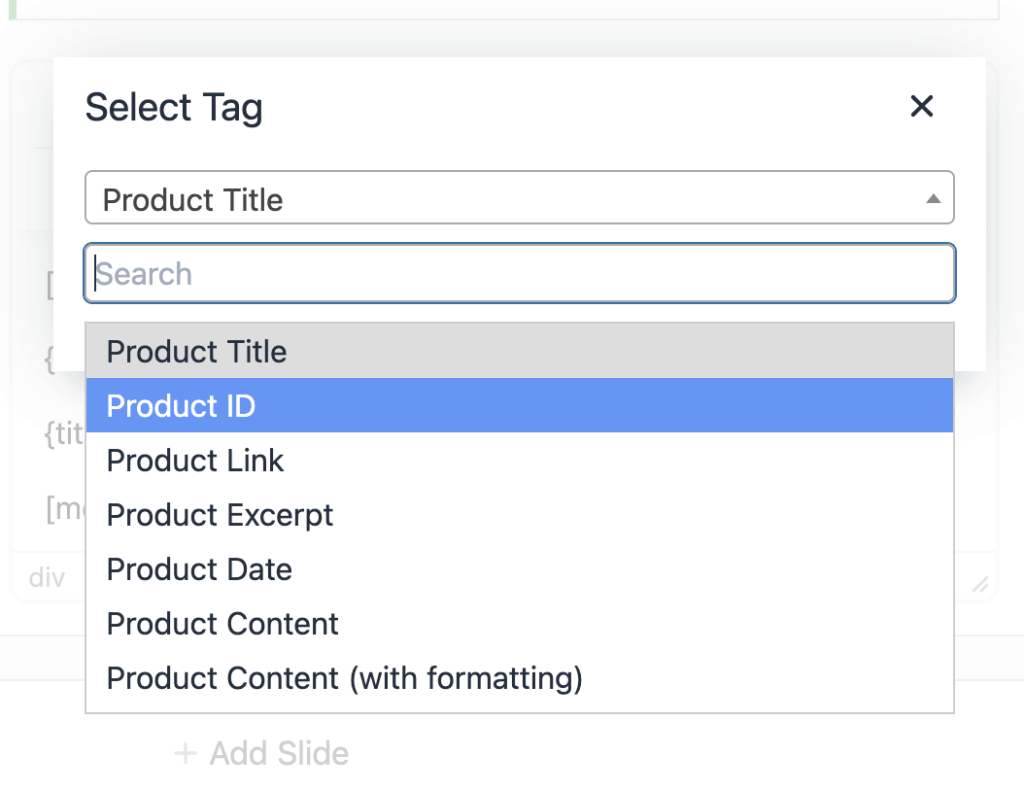
Click on the “Insert Product Details” button, and you’ll be able to choose items to add to the slide display. Here are the details you can add:
- Product Title
- Product ID
- Product Link
- Product Excerpt
- Product Date
- Product Content
- Product Tags
- Product Categories
- Price
- Sale Price
- Add to Cart URL
- SKU
- Product Attributes
- Total Sales
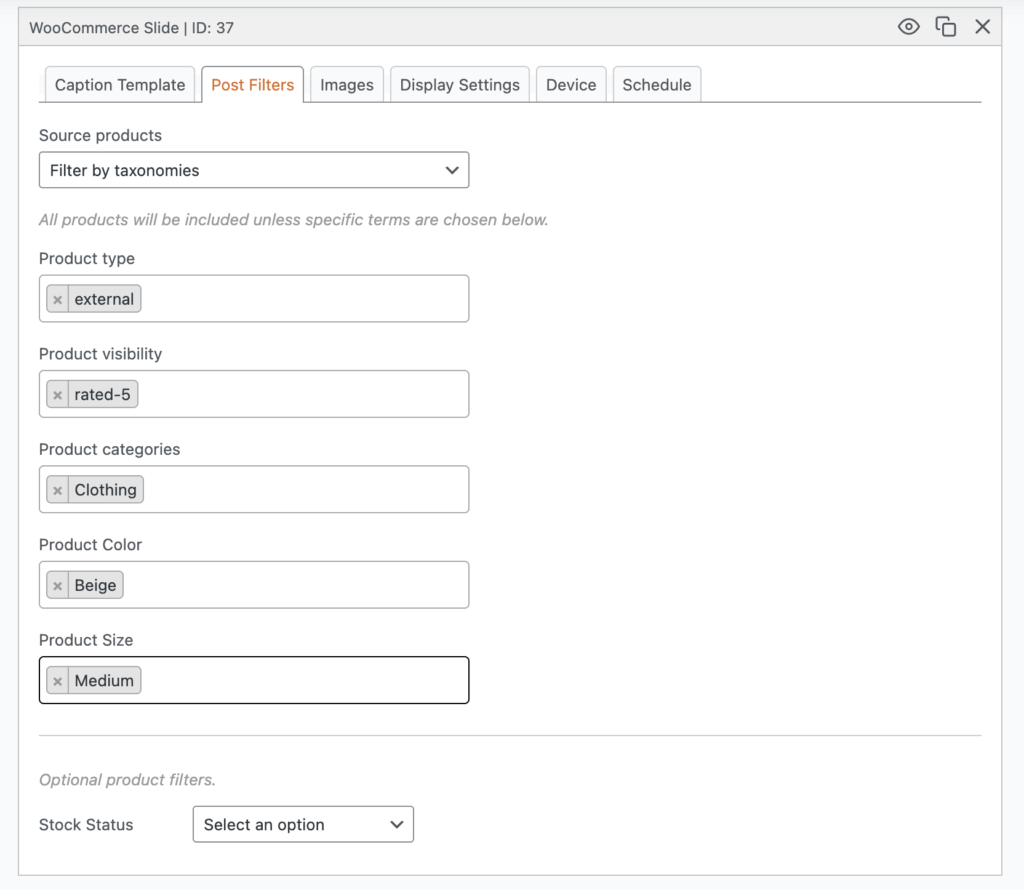
Under the “Post Filters” tab, you can filter using the WooCommerce taxonomies to decide which products to show. For example, you can chose to show only products with a 5-star rating, or only clothes in a medium size.
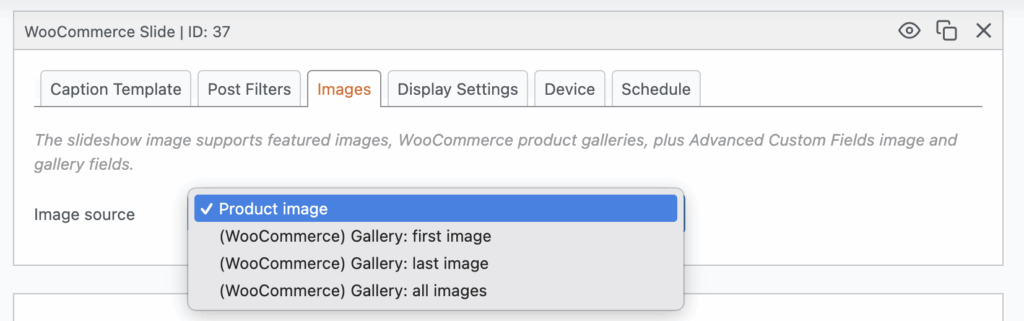
Under the “Images” tab, you can choose from several WooCommerce image options. You can use the main product image, or show images from the product gallery.
New WooCommerce themes
To go with the new WooCommerce slide type, there are two new themes designed specifically for WooCommerce. The themes are Zonora and Handicart.
This next screenshot shows a preview of the Zonora theme with WooCommerce products:
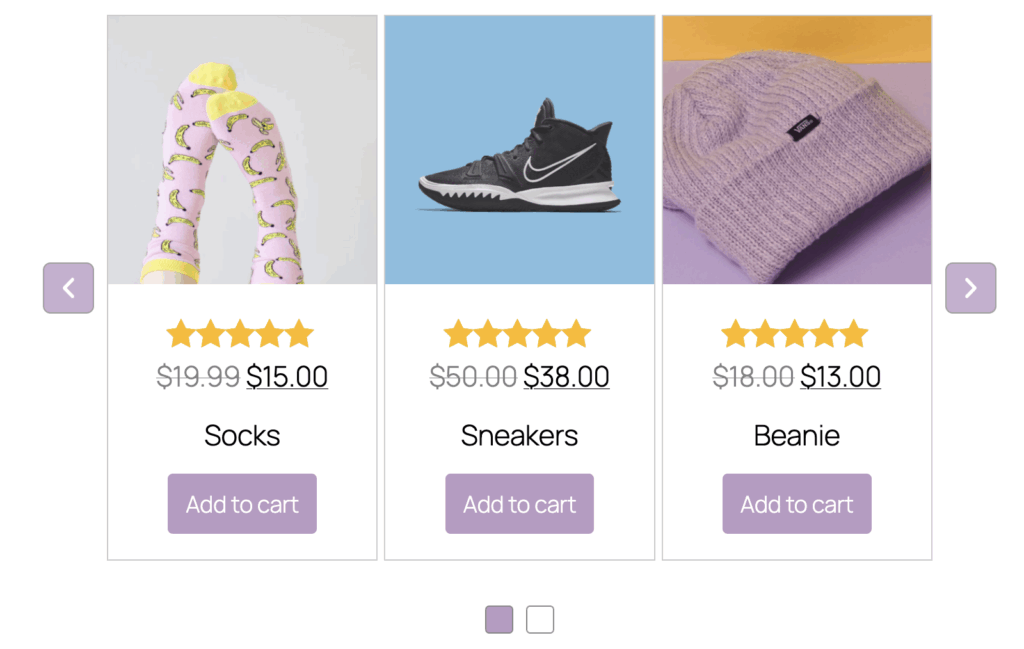
And this next image is a preview of the Handicart theme with WooCommerce products:

Choose a custom thumbnail for navigation
In MetaSlider Pro, it has long been possible to choose a custom image to use as the thumbnail in your navigation. This screenshot below shows an example using thumbnails with the “Filmstrip” navigation option.

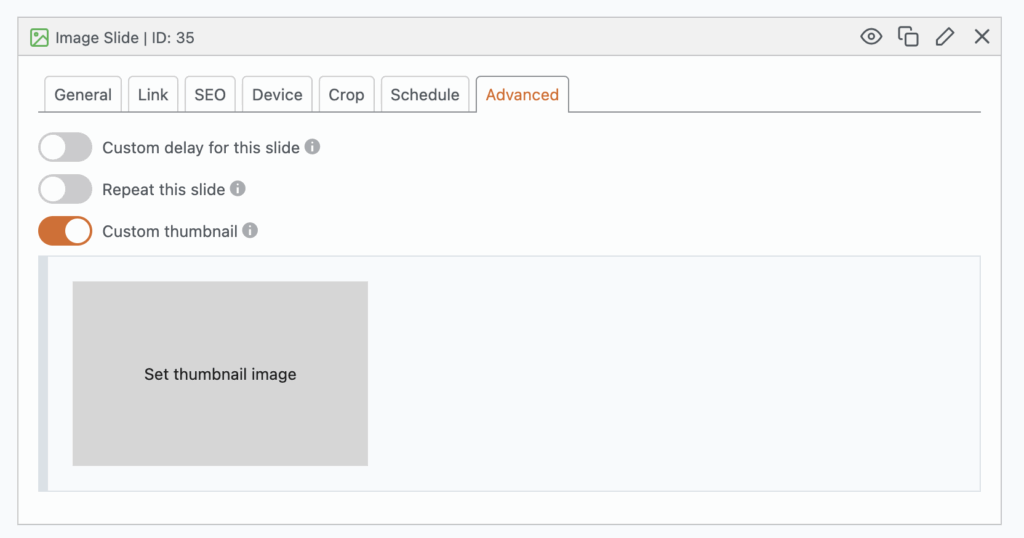
In the latest version of MetaSlider, it’s now possible to choose your own thumbnails if you don’t want them to be generated automatically. Under the “Advanced” tab, enable the “Custom thumbnail” setting and you’ll be able to choose the thumbnail image for each slide.
What’s next for MetaSlider?
We’re working hard on more improvements for the lightbox. You’ll be able to zoom, rotate images, set autoplay, go fullscreen, enable sharing options for images, and much more.
In the main MetaSlider plugin, you’ll soon see a redesign of the “Quick Start” screen. It will be much easier to get started with your slideshows. You’ll be able to choose your slideshow theme and layout immediately.

Get the best WordPress slideshow plugin
MetaSlider Slideshow is the best WordPress slider plugin.
You can create stylish sliders using images, videos and much more.