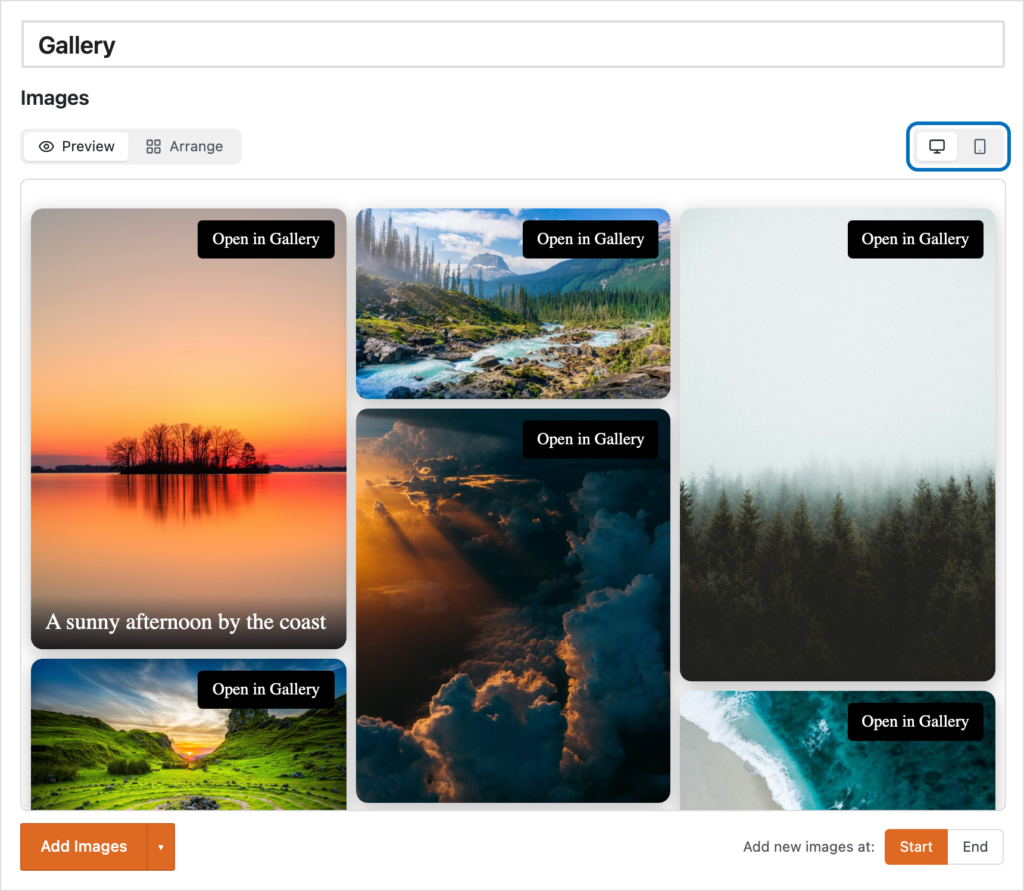
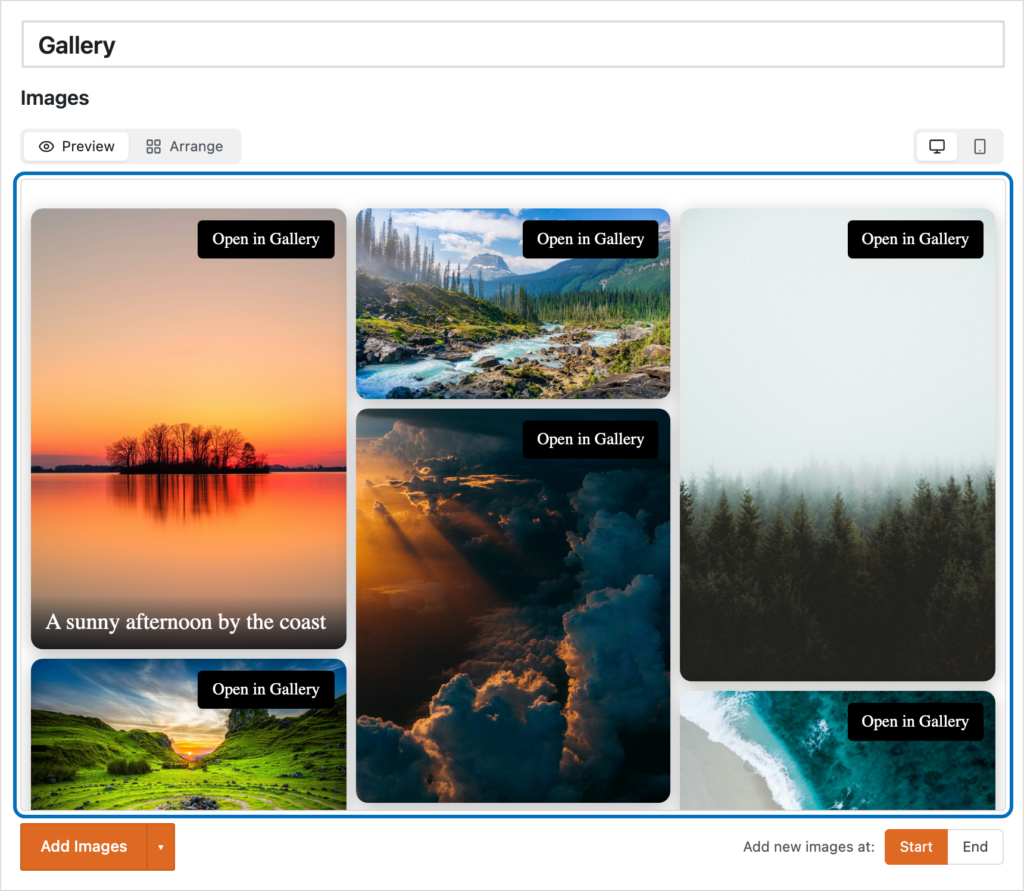
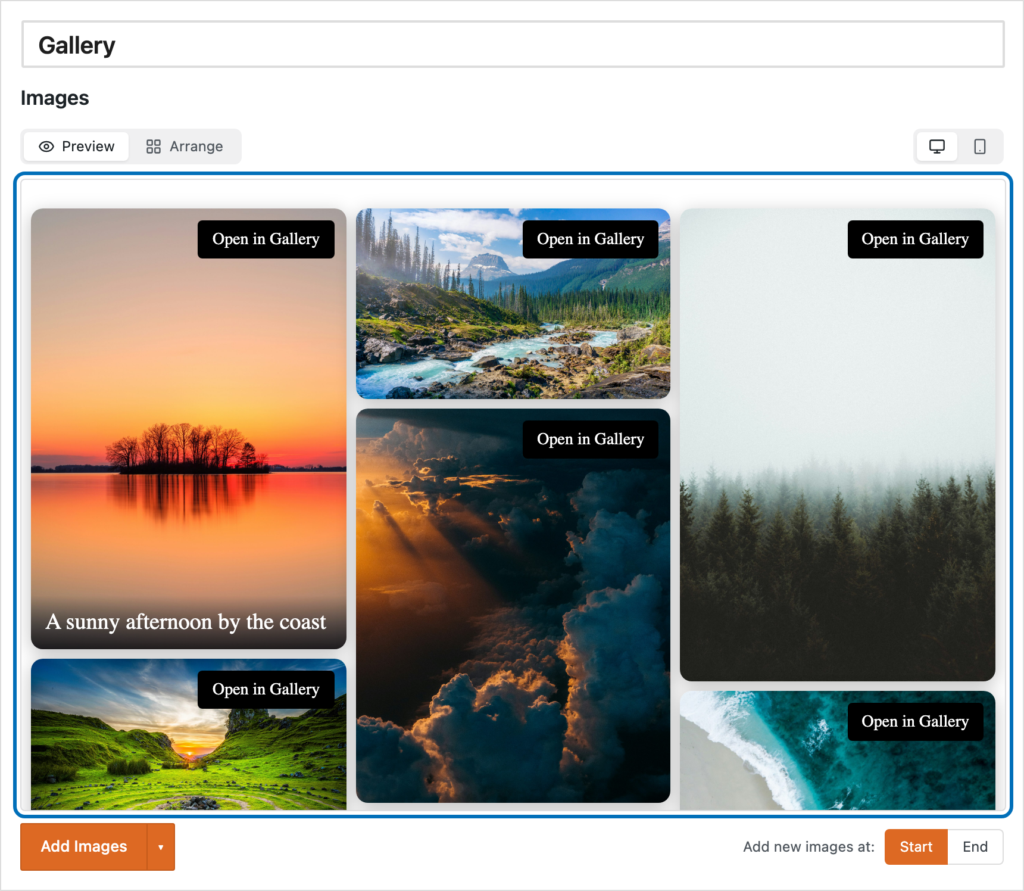
The gallery editor shows a live preview of your MetaSlider Gallery right beside your settings, so you can see exactly how it will look on your site before you save. The preview updates as you change the layout, columns, spacing, appearance, and image styles, and you can open the Gallery Window straight from the preview to check it the way a visitor would.
How to Switch Between Preview and Arrange #
The main pane of the gallery editor has two buttons at the top: ‘Preview’ and ‘Arrange’. Preview renders the gallery as it appears on the front end, while Arrange shows the thumbnail grid where you add, remove, and reorder images. A gallery that already has images opens in Preview; an empty one opens in Arrange so you can start adding photos.
Open a gallery from your Galleries list to reach the editor, then look for the ‘Preview’ and ‘Arrange’ buttons above the images.
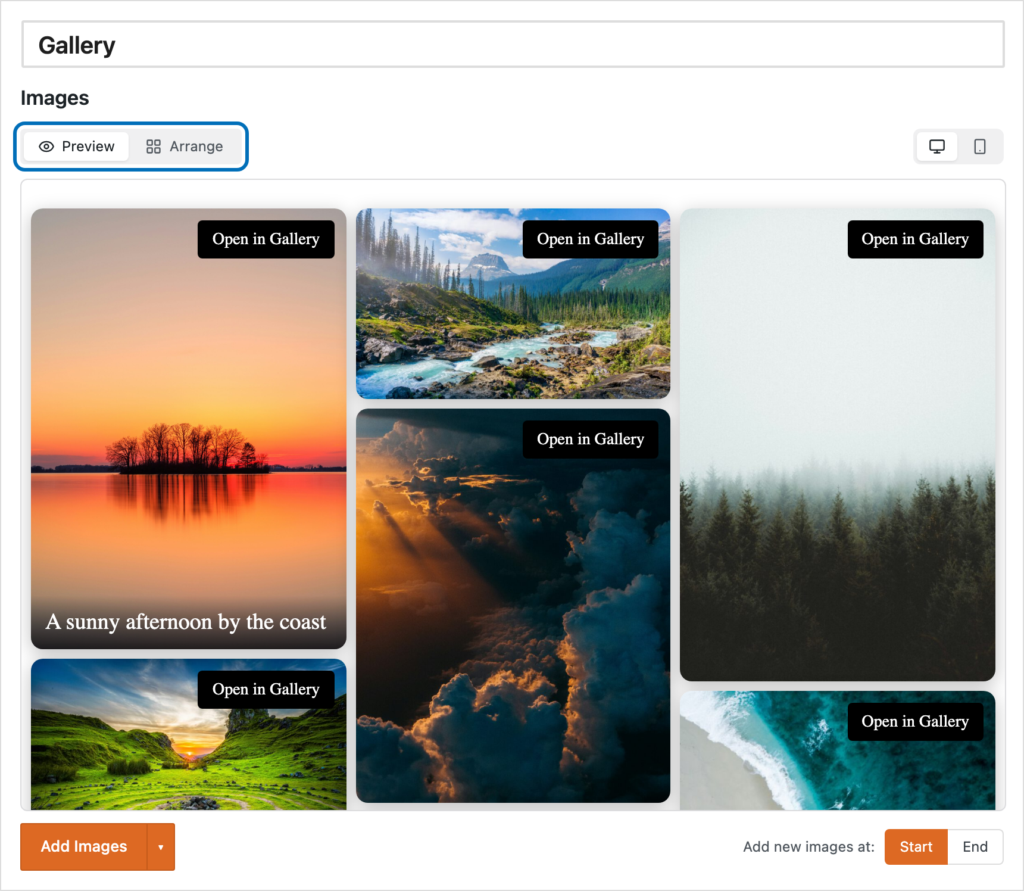
Choose ‘Preview’ to see the live rendering of your gallery, or ‘Arrange’ to go back to the thumbnail grid and change which images are included or the order they appear in.
How to See Your Settings Applied Live #
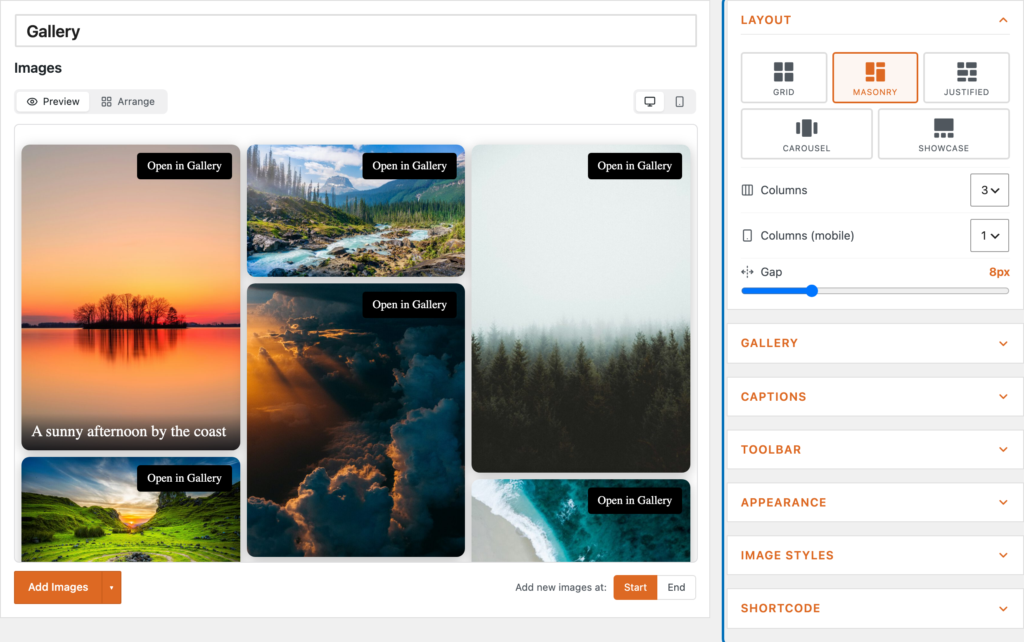
Every control in the settings sidebar feeds the preview. Change the layout, column count, gap, appearance, or image styles and the preview refreshes to match, so you never have to save and reload to check a change.
Adjust any setting in the sidebar on the right and watch the preview update to reflect it.
In Preview, click any image to open the lightbox exactly as your visitors will see it, then close it and keep editing.
How to Preview at Desktop and Mobile Width #
Preview includes a desktop and a mobile width switch in the top right, so you can check both without leaving the editor. The mobile view uses your ‘Columns on mobile’ setting, matching how the gallery re-flows on a phone.