
In this guide, we’ll explain some of the many ways that you can add a MetaSlider slideshow or gallery to your site. You have many options for how and where to display the slideshow. This guide works for both the MetaSlider Slideshow and MetaSlider Gallery plugins.
Option #1. Gutenberg Block #
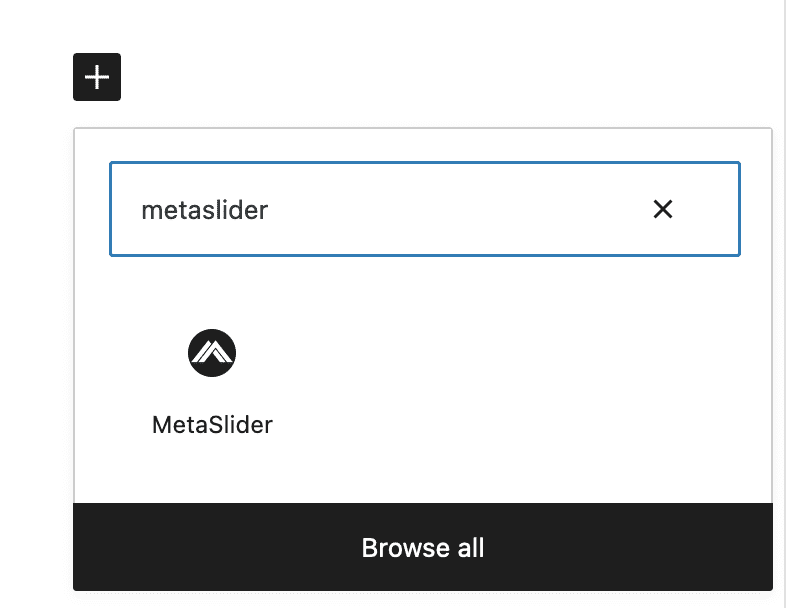
If you use the new block editor in WordPress, you can search for and use the “MetaSlider” blocks as in the image below. After choosing this block, you will be asked to select the name of the slideshow or gallery you want to use.
You will be able to see a live preview of your slideshow or gallery inside the post editing screen. This screenshot below shows the MetaSlider Slideshow block.

Option #2. Shortcode #
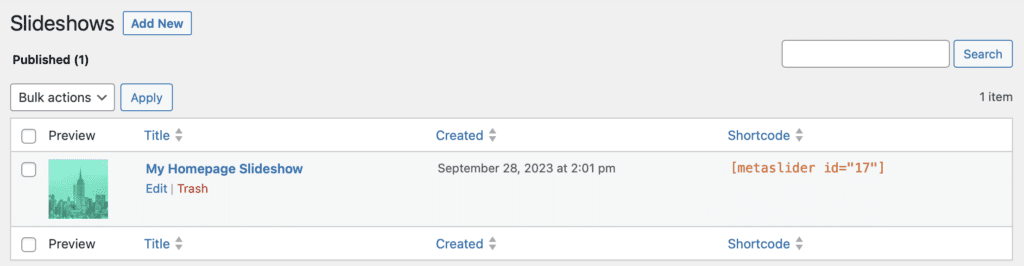
The shortcode for each slideshow is available in the right sidebar when you’re in the “Slideshows” or “Galleries” screens. In this image below, you can see that the shortcode has an ID of 17.
This next screenshot shows the shortcode placed inside the new block editor.

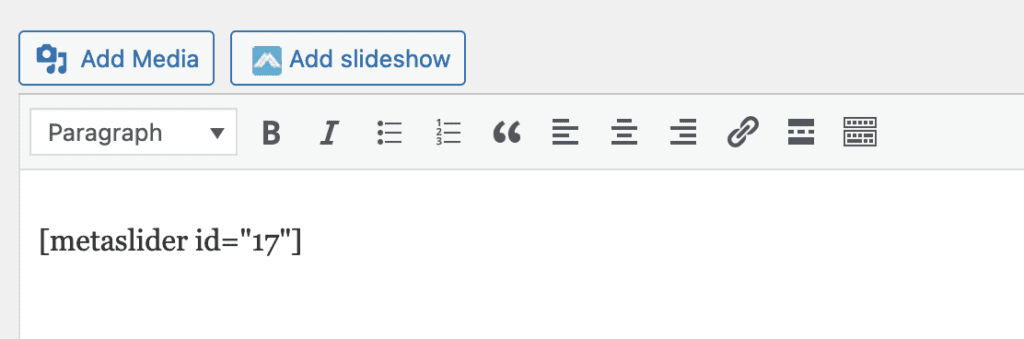
One advantage of the shortcode option is that it can be used in other situations, such as the “Classic Editor” or pagebuilders. In the image below, we’ve added the shortcode to the old WordPress editor.
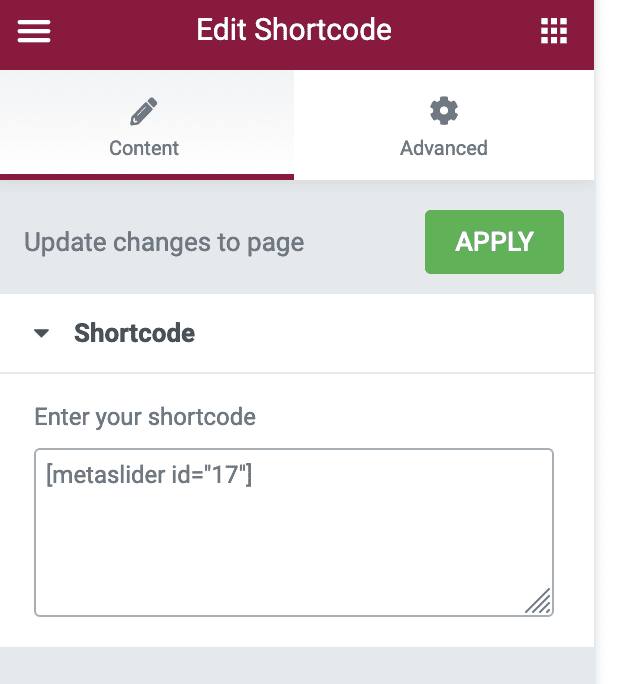
In this next example, we’ve used the shortcode option to add MetaSlider to a site using Elementor:
Option #3. PHP #
It is possible to add your slideshow directly into your theme’s PHP files. We recommend using the shortcode. Hostinger have a detailed guide to add a Metaslider shortcode to your site using PHP.
Here’s an example of how to include shortcode in your PHP files:
<?php echo do_shortcode( '[metaslider id="7"]' ); ?>