
Table of Contents
MetaSlider lets you add a free photo, illustration, or vector from Pixabay straight into your slideshow, without leaving the slide editor.
How to Add a Slide From Pixabay #
-
Open the slideshow you want to edit, then click ‘Add a new slide’ above the slide list. In the window that opens, click ‘Pixabay Library’.

-
Use the search box, or the type dropdown (‘Photos’, ‘Illustrations’, ‘Vectors’, ‘All types’), to find an image, then click one to select it.
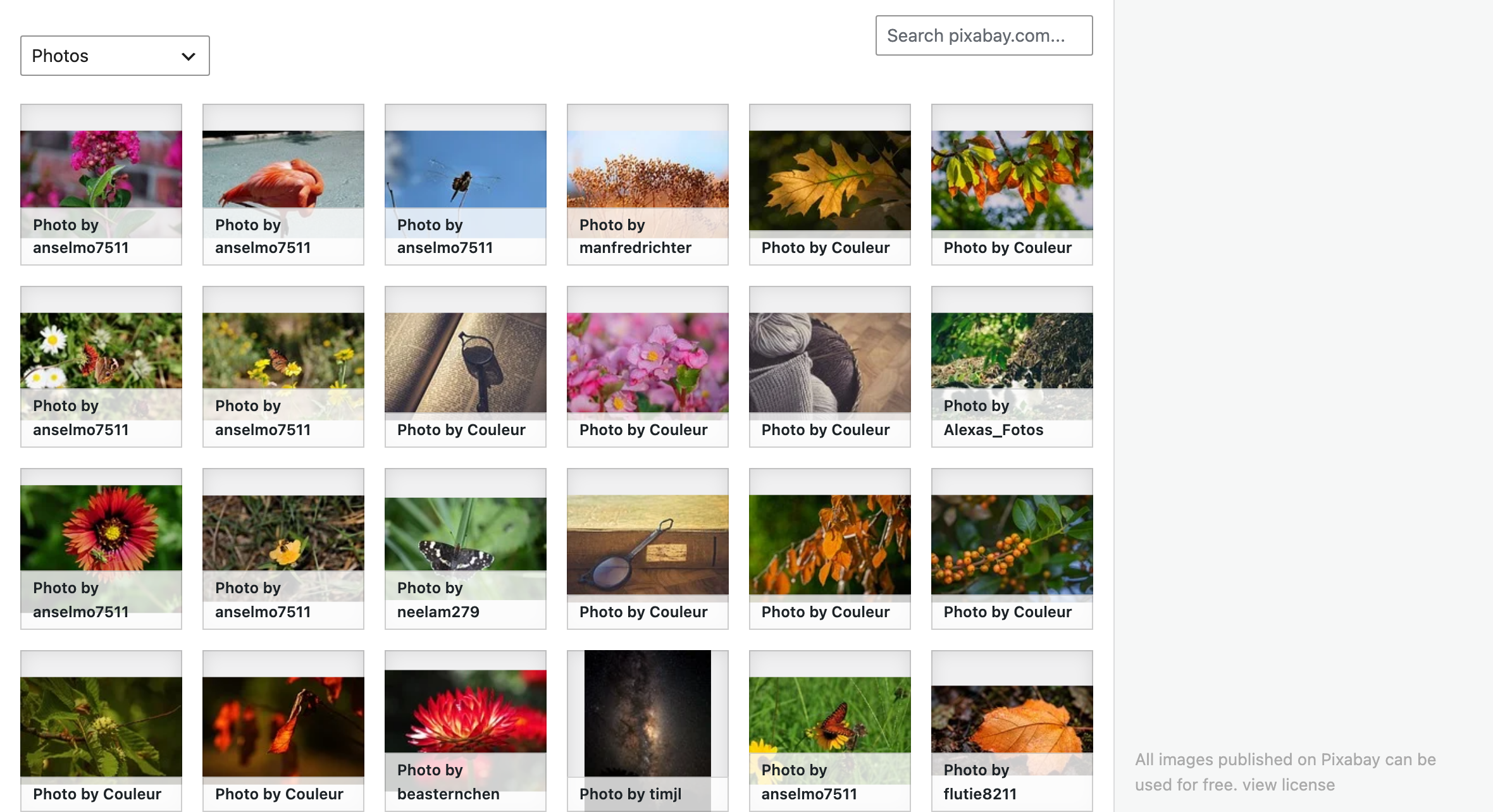
-
On the right, set the ‘Title’, ‘Caption’, ‘Alt Text’, and ‘Description’ for the image, and choose its ‘Quality’ — ‘Preview’, ‘Medium’, or ‘Large’.
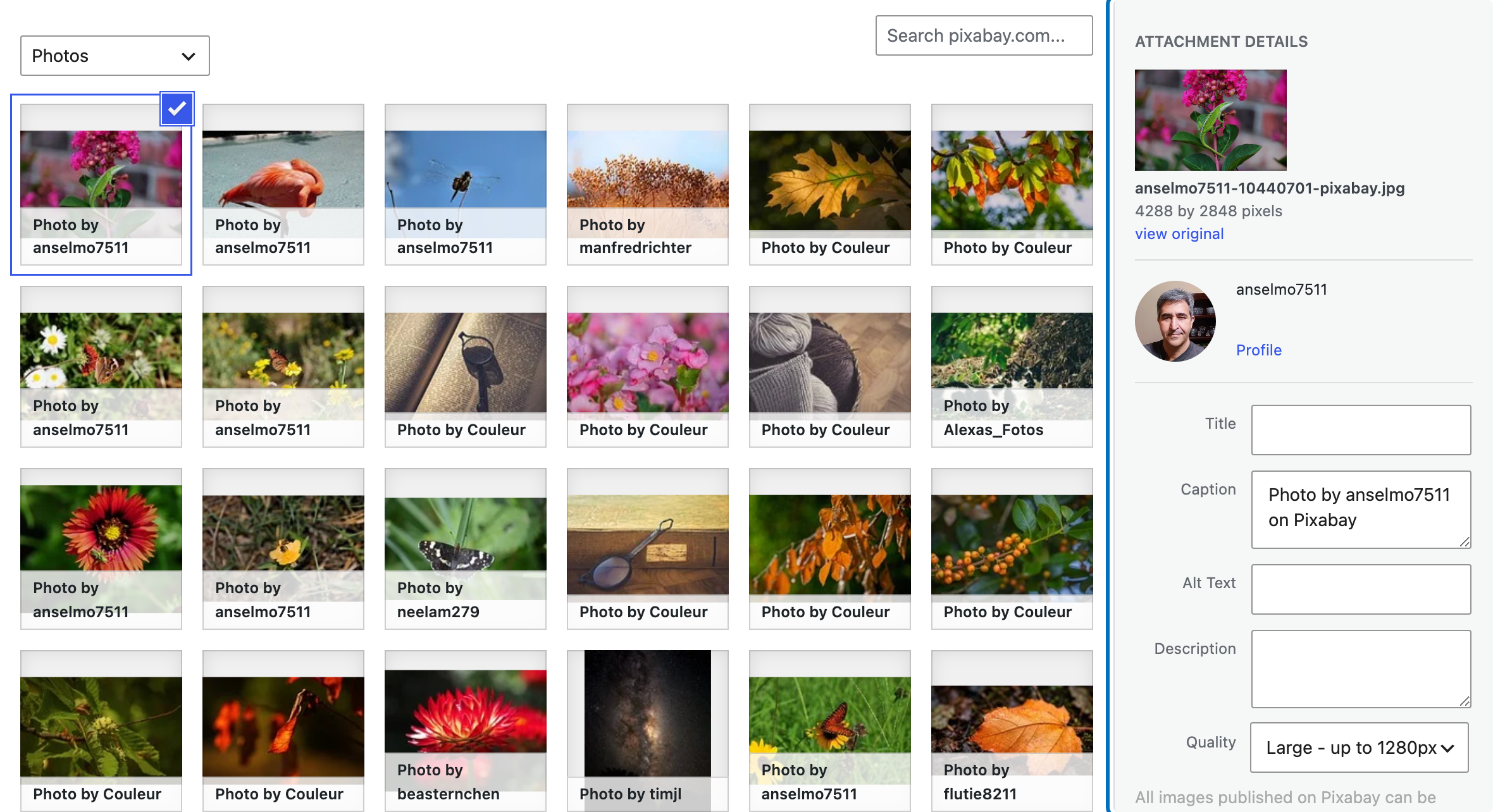
-
Click ‘Add to slideshow’ to add the photo as a new slide.

Your slideshow now has a new slide using the Pixabay photo you picked, credited to its photographer.