
When you trash a slide, MetaSlider keeps it in the trash for 30 days, so you can bring it back to your slideshow if you change your mind.
How to Restore Trashed Slides #
Your trashed slides have their own list. The ‘Trashed Slides’ section only appears when the slideshow has slides in the trash.
-
Open the slideshow, then look for ‘Trashed Slides’ at the bottom of the settings panel on the right and click it to expand.

-
Click ‘View trashed slides’. The number next to it shows how many slides are in the trash.

-
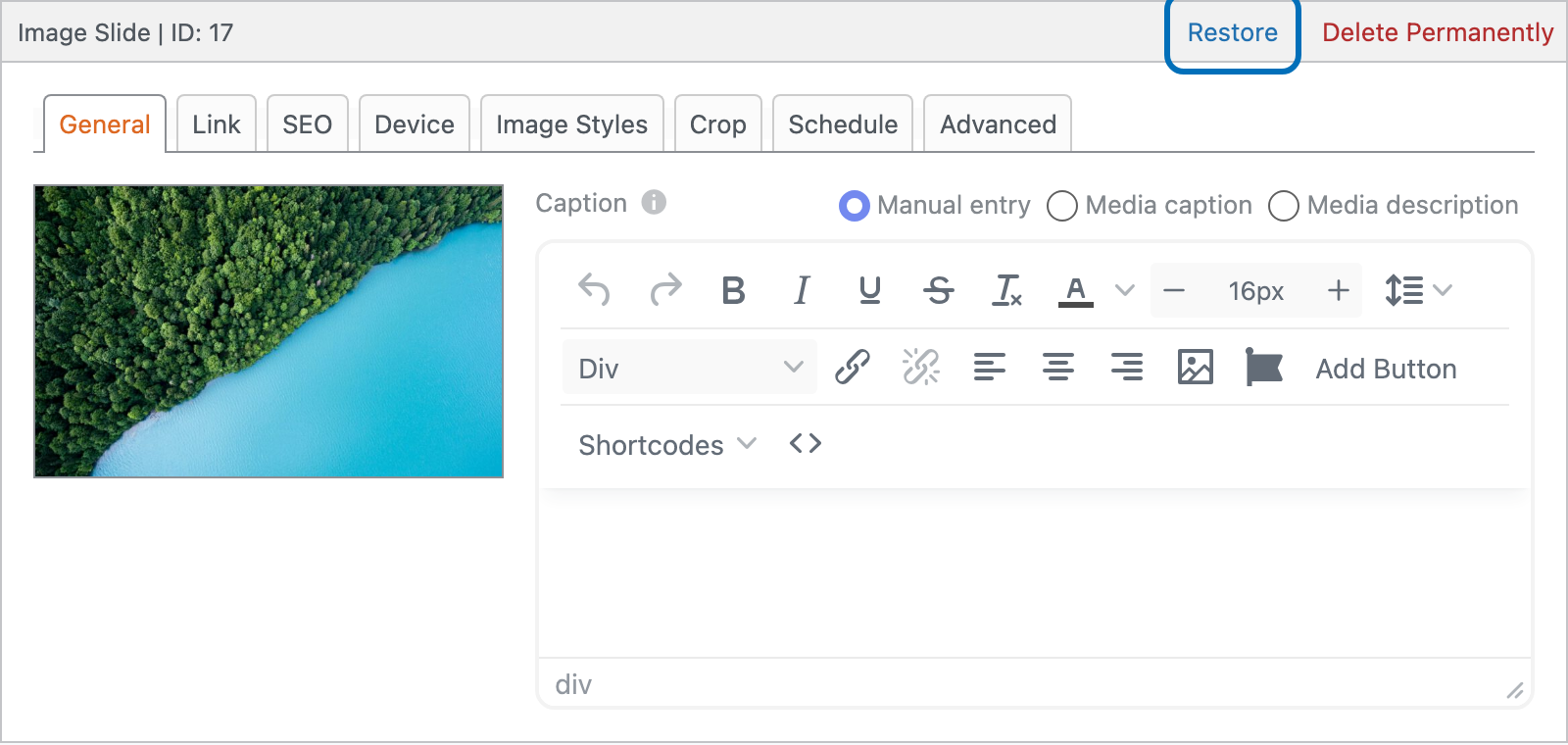
Find the slide you want and click ‘Restore’ under its name. If you want to remove a slide for good instead, click ‘Delete Permanently’.
-
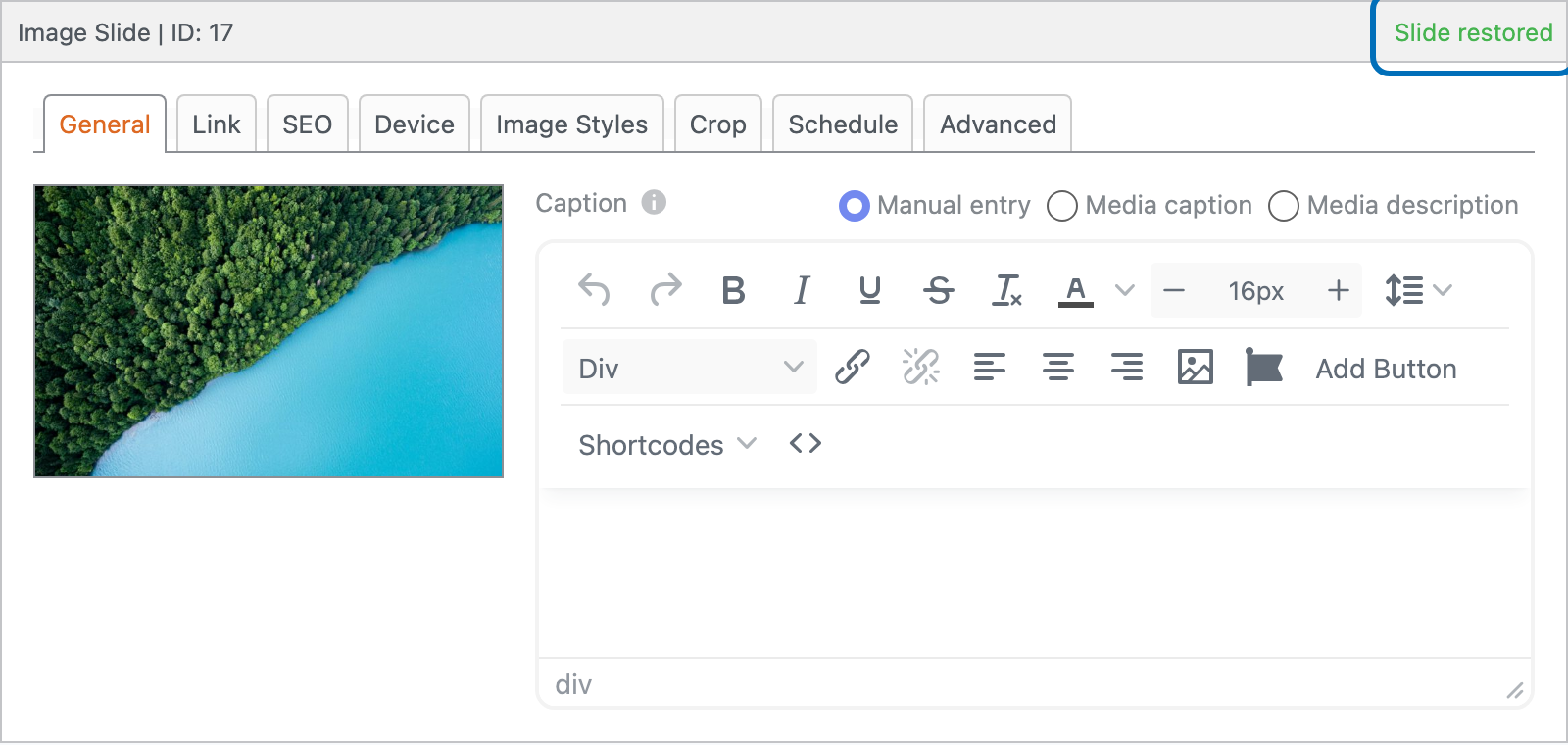
A ‘Slide restored’ message appears on the slide once it’s back in your slideshow.
-
Click ‘Return to Published Slides’ to go back to the slideshow editor.

Your restored slides are back in your slideshow, with all their settings.