
Image Styles let you apply a one-click filter, rounded corners, border, box shadow, opacity, and rotation or flip to your slideshow’s images — set a default for every slide, or override it per slide.
How to use Image Styles #
-
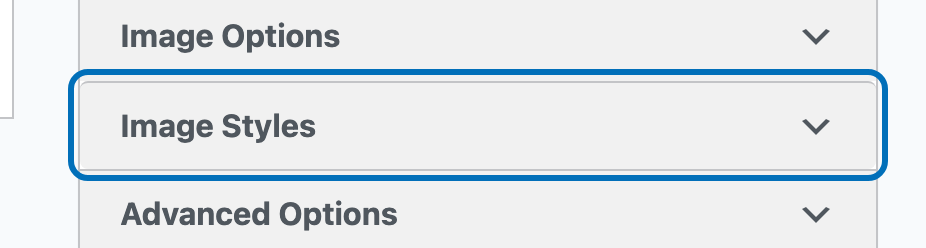
Open the slideshow you want to edit, then look for ‘Image Styles’ in the settings panel on the right and click it to expand.
-
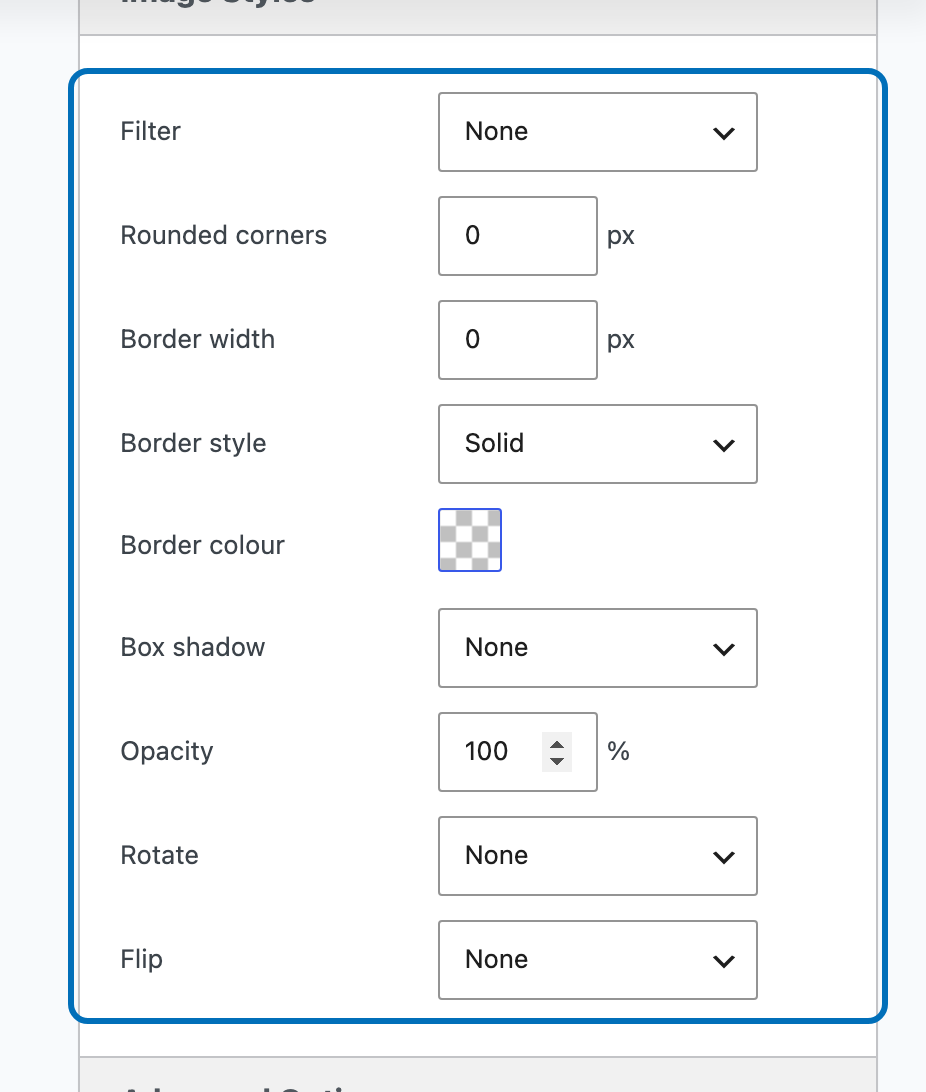
Choose a ‘Filter’ preset, or set your own ‘Rounded corners’, ‘Border’, ‘Box shadow’, ‘Opacity’, ‘Rotate’, and ‘Flip’. These apply to every slide by default.
-
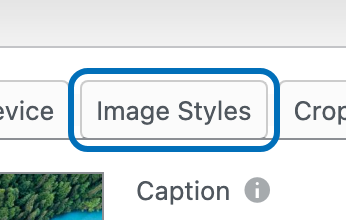
To override the default for one slide, open that slide and select its ‘Image Styles’ tab.
-
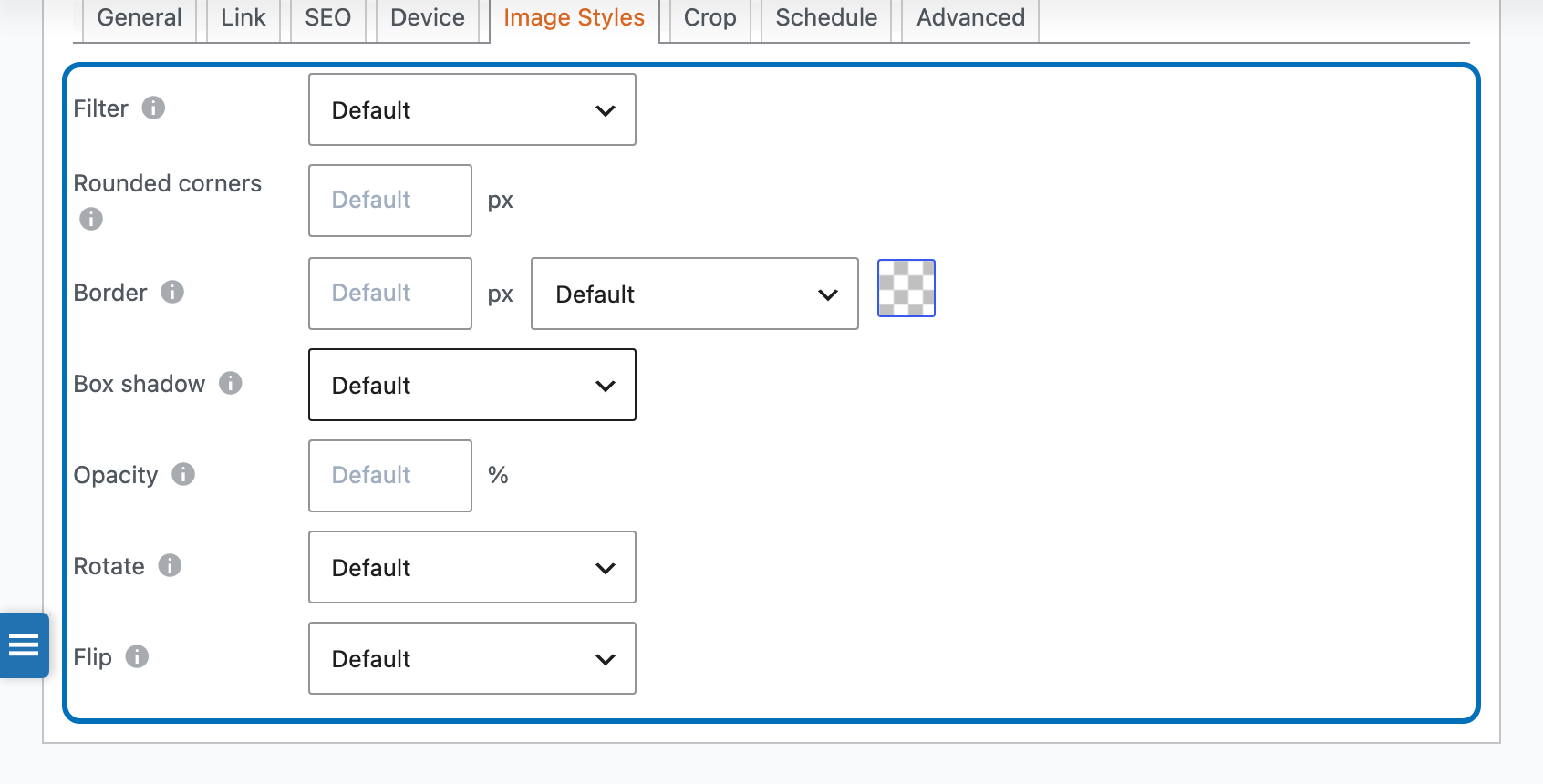
Set that slide’s own ‘Filter’, ‘Rounded corners’, ‘Border’, ‘Box shadow’, ‘Opacity’, ‘Rotate’, or ‘Flip’. Leave a field blank (or on ‘Default’) to keep using the slideshow-wide setting instead.
Your slideshow now applies these styles to every slide, with per-slide overrides wherever you set them.