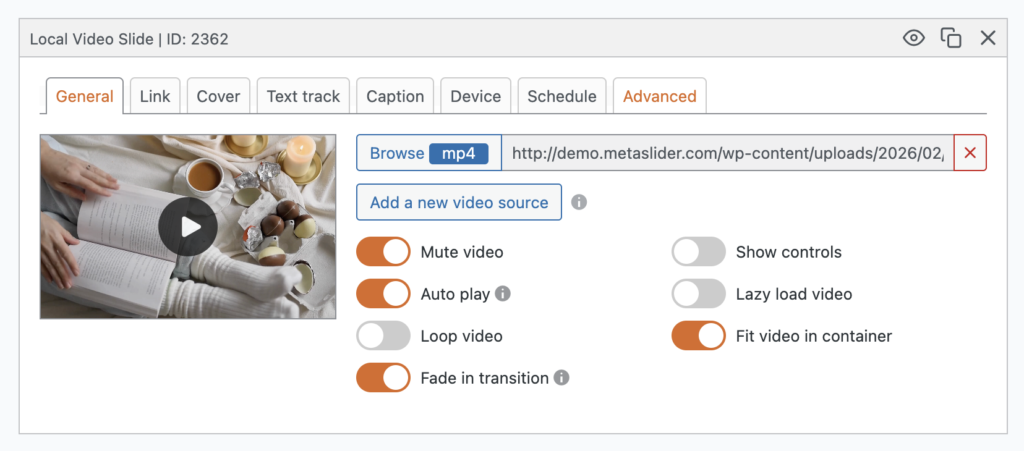
With Local Video Slides you can build beautiful slideshows with videos in your WordPress media library.
Local Video slides will display your MP4, WebM, and MOV videos with cover image, auto play, mute, lazy load, the ability to hide controls, and much more.
Please note that support for MOV videos can be limited on Android devices. We recommend using MP4 or WebM formats where possible. We also offer the option of adding multiple formats in case one format is not supported in a particular browser.
Add a new Local Video Slide to your slideshow #
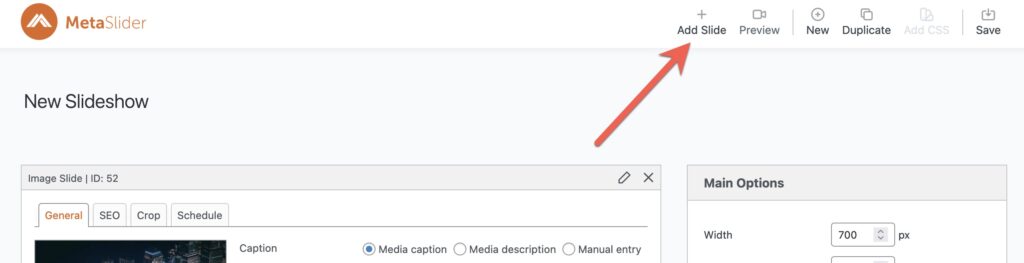
- Click the “Add Slide” button to launch the Media Manager.
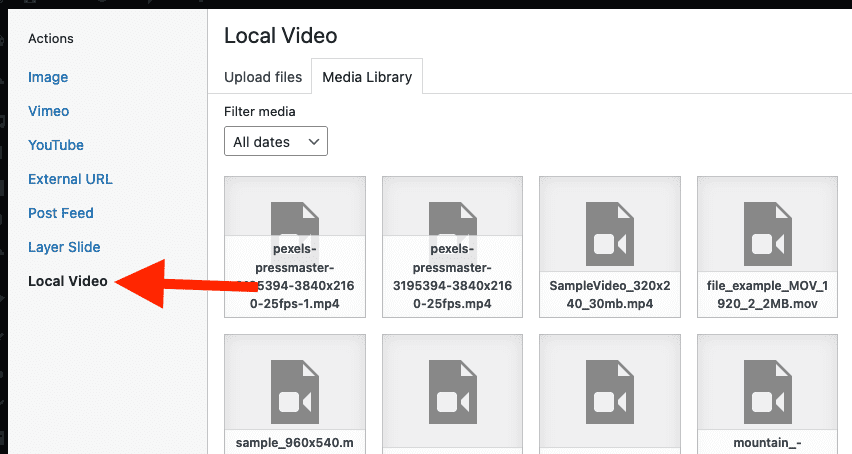
- In the left menu of the Media Manager, select “Local Video”.
- From here you can select a video for the slide, or upload a new video.
Configure your Local Video slide #
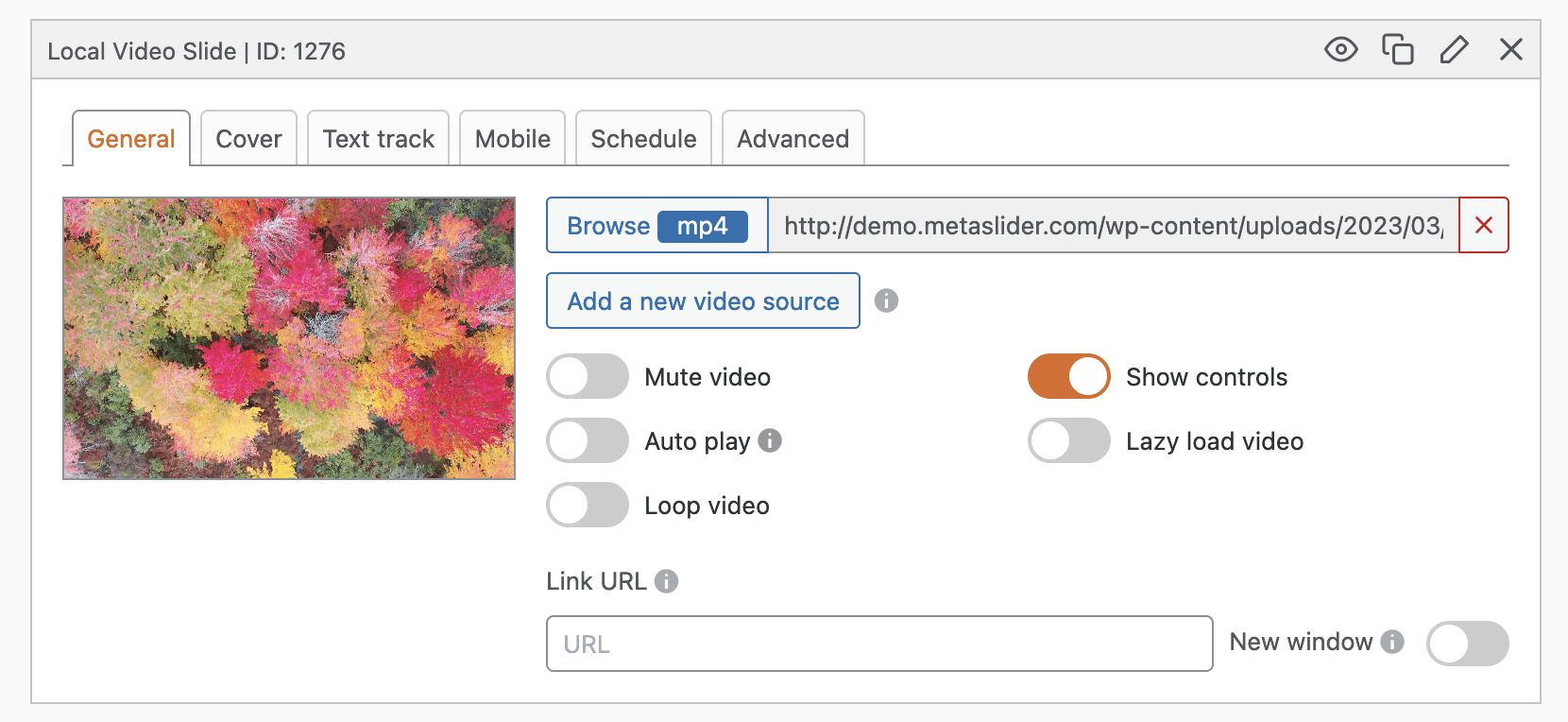
The “General” tab allows you to configure the parameters used for the local video. Here are the key settings:
- Mute video: This will disable the sound by default. Your visitor can choose to enable the sound.
- Show controls: This will load player bottom bar and play button on the video that allow visitors to move the video forward and back, mute, view in full screen mode and more.
- Auto play (may require video to be muted): This start the video as soon as the slide is displayed. When you enable this setting, also check “Mute video”.
- Lazy load video: This can increase how quickly your video appears for visitors.
- Loop video: This will allow to play the video in a loop and pause the slideshow until user decides to see the next slide.
Configure a cover for your Local Video slide #
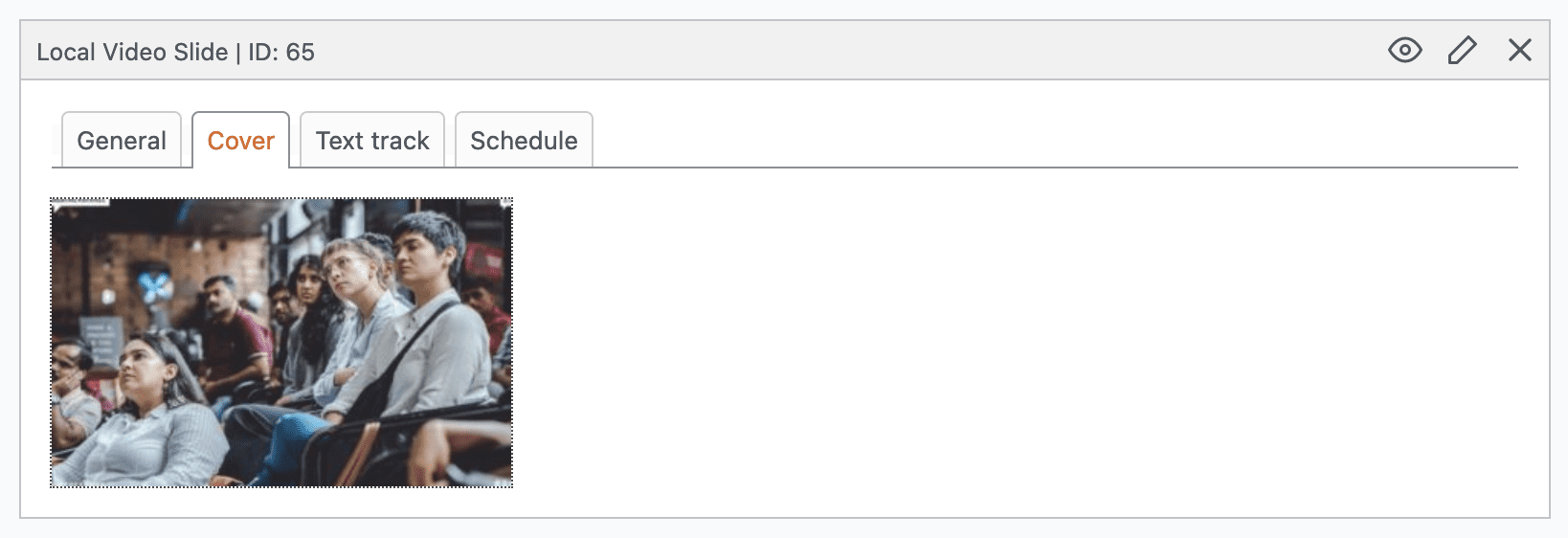
Using the “Cover” tab you can choose a cover image for your video. This is useful to show as placeholder when the video is not initialized or “Lazy load video” is enabled.
- Click “Set cover image” and upload or choose an image from the Media library.
Configure a Text Track for your Local Video slide #
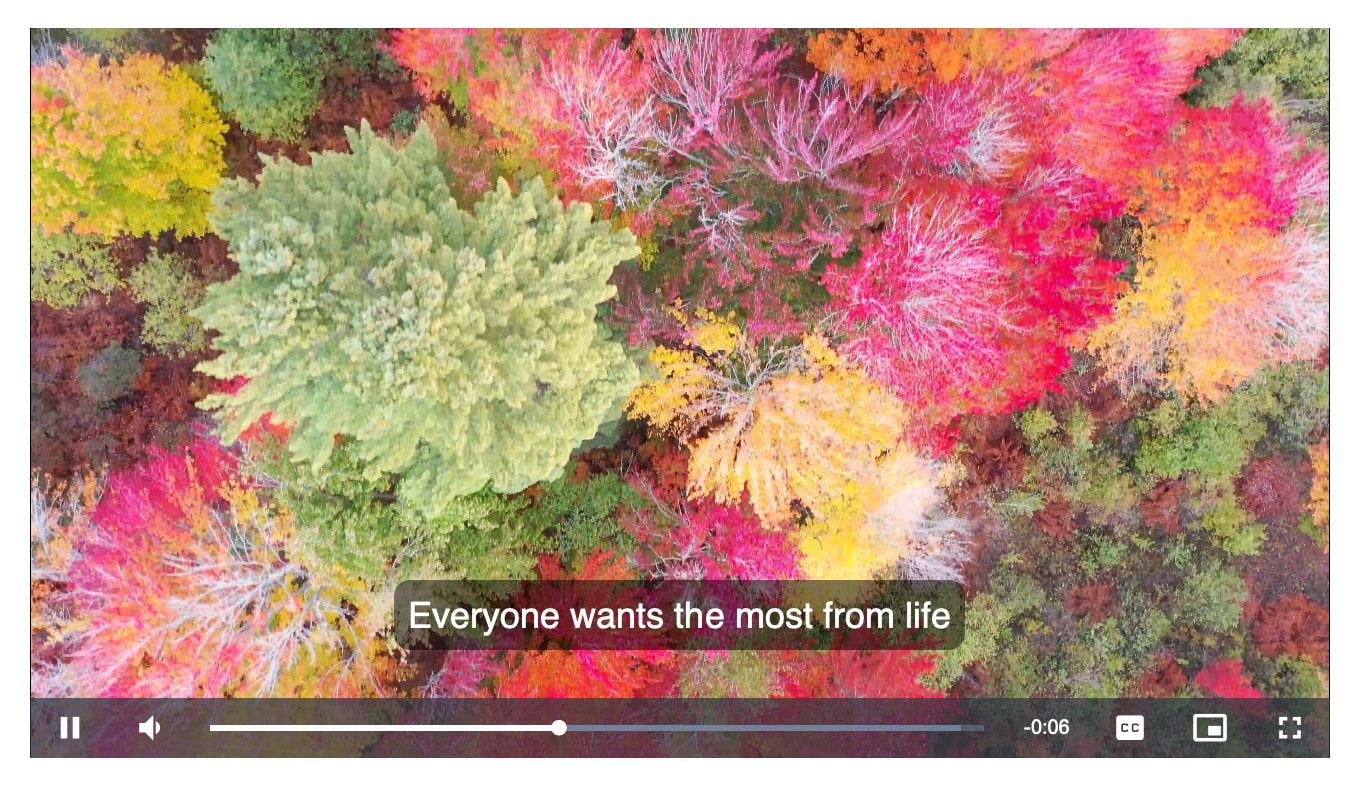
Using the “Text track” tab, it is possible to add video captions to Local Video Slides. This feature uses VTT files to add captions.
Click here for more details on Text Tracks.
This screenshot below shows how the video will appear with text captions. There is a “CC” button in the toolbar that viewers can use to control the captions.
A Note on Video Types #
- MP4 files are the recommended option. MP4 is the most widely supported video format across all major desktop and mobile browsers, including Chrome, Safari, Edge, Firefox, and Opera.
- WebM files are the second recommended option. This format is widely supported by all major modern browsers.
- MOV files have inconsistent support across web browsers, working best in Safari but often failing in Chrome, Firefox, and Edge unless encoded in H.264.
If you’re concerned about a video not loading in a particular browser, we do offer a fallback option. Click the “Add a new video source” button to add a fallback video.